SketchUp on a Mac: which plans work and how to install it
Use Pro for Desktop and LayOut on a supported Mac. Choose 2027 for Apple silicon or legacy 2026.2 for Intel, copy the SketchUp folder to Applications and sign in with your assigned Trimble ID.
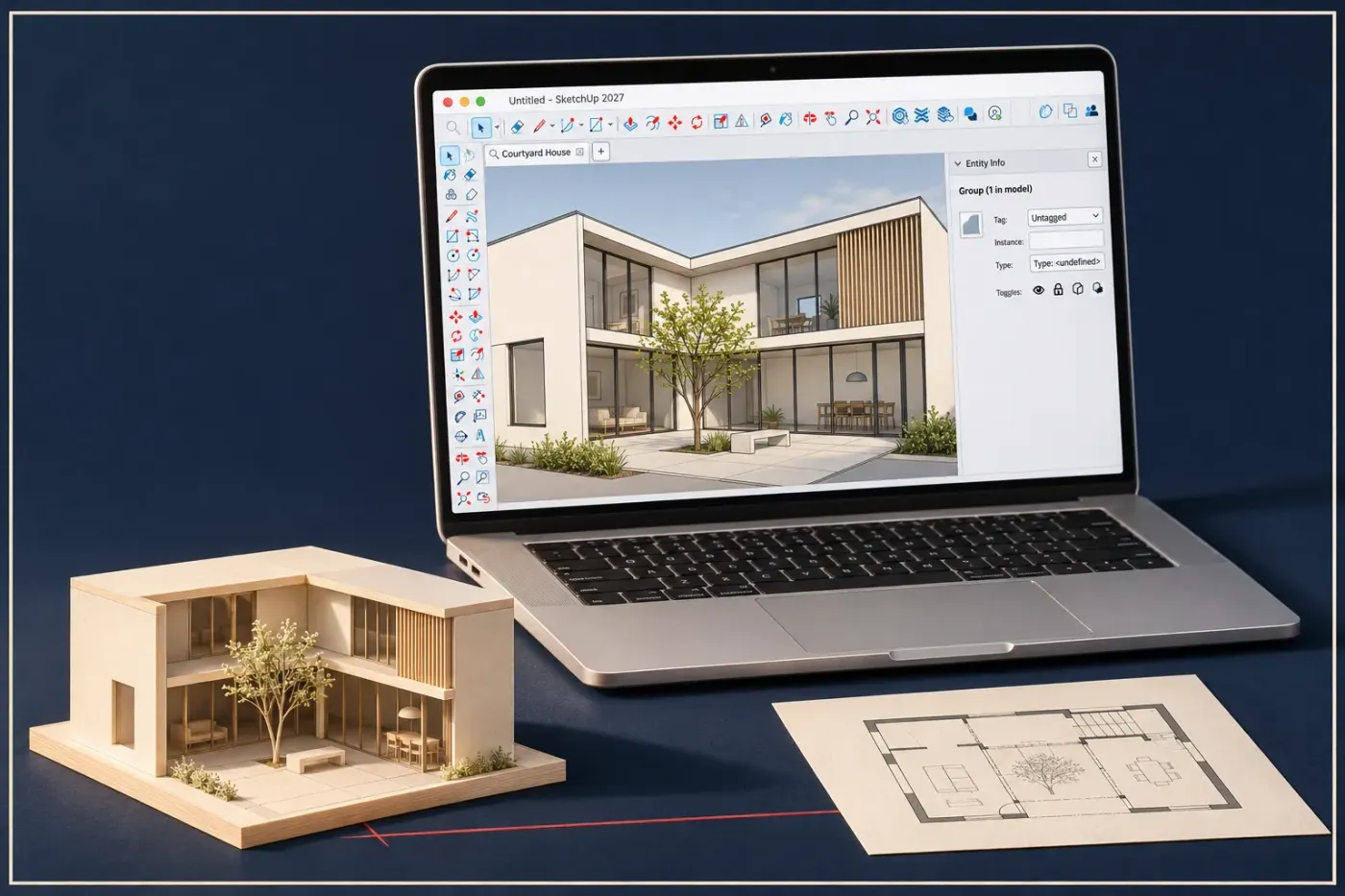
Get the Mac DMG from SketchUp’s official download page. Choose 2027 for a supported Apple silicon Mac or 2026.2 for a compatible Intel Mac, then check the macOS requirements for that release. Pro gives you Desktop and LayOut. Free and Go run in the browser on a Mac.
Choose Desktop or Web before paying
I'd choose Pro when the deliverable includes LayOut drawing sheets or a desktop extension, because those tools aren't part of Go. For a personal model that fits the browser tools, Free can be enough. The distinction is the application and tools you need, rather than whether your computer is a MacBook Air, MacBook Pro or desktop Mac.
| What you need | Choose | Check this limit |
|---|---|---|
| Personal browser modeling | SketchUp Free | No desktop installation; not for commercial use. |
| Paid browser modeling, with iPad access | SketchUp Go | Web and iPad; no installed Mac desktop modeler. |
| Desktop modeling, drawing sheets or extensions | SketchUp Pro | The plan includes Desktop and LayOut; each extension needs its own compatibility check. |
The Pro trial lasts seven days and includes Mac access. The website's Pro trial requires no credit card, and you don't need to cancel it to avoid a charge when it ends. This is separate from a Go subscription purchased through the mobile App Store. Higher-education students and educators have a separate education plan. For billing and subscription totals, use the SketchUp cost breakdown; the Mac installer itself doesn't grant a paid entitlement.
For Web, sign in with a Trimble ID in a browser. SketchUp recommends current Chrome, Firefox or Edge; Safari can run the app, but I'd choose one of those recommended browsers before troubleshooting browser-specific problems. A three-button scroll-wheel mouse makes orbiting, zooming and precise placement easier. You don't need to download Desktop to use Web.
Check your chip, macOS and SketchUp release together
Open Apple menu > About This Mac. Apple identifies an Apple silicon Mac with a Chip row and an Intel Mac with a Processor row. Record the macOS version too. A compatible chip doesn't make every operating-system version compatible.

- Apple M-series: the current 2027 release requires Apple silicon. Its Mac requirements list macOS 27 Golden Gate, 26 Tahoe and 15 Sequoia, at least 6 GB of available disk space, and internet access for installation and authorization.
- Intel: choose 2026.2, which SketchUp identifies as a fully supported legacy version for Intel Macs. Don't apply the 2027 macOS list to it. The 2026 compatibility notes exclude macOS 13 and older; check your particular OS and graphics hardware against that release before downloading.
If your Apple silicon Mac is on an OS outside the 2027 list, an earlier supported SketchUp release may be the right route. Use the older-release choices on the official download page and check that release's compatibility notes. The 2027 chip requirement doesn't mean you must upgrade a working Mac or its operating system immediately.
SketchUp says all M-series Macs meet its minimum RAM and graphics requirements. The newer SketchUp graphics engine needs a supported macOS release and Metal 2 support. Its Classic engine provides a separate fallback when the newer engine cannot run. Those are modeler requirements; a large furnished model and a rendering extension add their own workload. Keep the modeler's requirements separate from those of your rendering extension.
Don't update macOS just to make the version number newer. SketchUp's macOS update guidance warns that extensions, renderers and peripherals can lag behind OS changes. Check the complete workflow before changing an otherwise working machine.
Install the official Mac DMG and activate Desktop
Use the official Mac downloads. The App Store listing is for the mobile app, not the Mac desktop installer. A search result marked “Free download” also doesn't turn Desktop into SketchUp Free.
- Prepare the Mac. Use a macOS account with administrator privileges and close SketchUp, LayOut and Style Builder. You don't need to remove the previous SketchUp version before installing the new one.
- Choose the release. Download the Mac DMG for the chip and macOS combination you checked above. Intel users should choose the 2026.2 route rather than the prominent 2027 download.
- Mount the DMG. Double-click it in Downloads. The mounted disk opens an installation window; this isn't yet the installed working copy.
- Copy the folder. Drag the SketchUp folder to Applications and wait for copying to finish. Open SketchUp from that folder in Applications. This avoids launching a previous release through an old Dock icon.
- Sign in. At the Welcome window, click Sign In. The activation flow opens your preferred browser. Use the Trimble ID assigned to your Pro or eligible education seat, or the account used for your trial.
- Return to the app. After the browser confirms successful sign-in, return to SketchUp and open a new model. Browser success alone isn't the final check: the desktop app must let you start modeling.

If the wrong version opens, quit it and launch the intended release directly from Applications. Check SketchUp > About SketchUp for the running version. Fix the Dock shortcut after that check; downloading another installer won't correct a shortcut that still opens the old app.
Desktop can work offline between subscription checks, but it needs online validation about every 28 days. Online services such as 3D Warehouse still need a connection. Open your locally saved project and validate the subscription before leaving for a disconnected session.
Check a model before moving real work
I would verify the base installation before migrating extensions. Otherwise a failed plugin and a failed application can look like the same problem.
- Start a blank model with the template and units you intend to use. Draw a rectangle, use Push/Pull on its face, then orbit the resulting box. This checks a basic editing path without the complexity of an imported project.
- Use File > Save to save an SKP locally, close that model, then reopen the saved file. Confirm the geometry is still there.
- Open a copy of a representative existing project. Check the geometry, materials and scenes you need. If the job includes LayOut, open a copy of its document in LayOut and inspect the model views before replacing your working files.
SketchUp uses a versionless SKP format across supported releases. That helps exchange models between Mac and Windows; it doesn't guarantee that a renderer, extension or its editable objects work in both installations. Keep the original project until the receiving workflow checks out.
Save the working SKP locally or through Trimble Connect. SketchUp warns against syncing the only copy directly through third-party cloud storage or a company network because of corruption and data-loss risks. A file appearing in Finder isn't enough: verify that the saved copy opens.
Use instructions for your Mac interface version
SketchUp 2027 unified the Mac and Windows desktop interfaces, including dockable toolbars and tray management. Older Mac tutorials showing only floating inspectors can still explain modeling, but their workspace instructions won't match 2027.
- On 2027: open Window > Default Tray to choose panels, or Window > Manage Trays to manage their layout. The Mac-only SketchUp menu still contains Preferences. Model tabs let you switch between open models within the main workspace.
- On an earlier Mac release, including Intel's 2026.2: individual dialogs appear under Window; tool palettes are under View > Tool Palettes. Arrange or collapse those dialogs rather than searching for the newer docked layout.

While using a tool, read the status-bar hints and Measurements field. They show the active operation and available modifiers. Follow the Mac modifier shown there rather than translating every Windows Ctrl instruction into Command; see the Mac and Windows shortcut reference for individual tools.
Move settings and extensions deliberately
Opening an SKP brings its model content across; it doesn't install every extension from the old computer. Before migrating, check each essential extension's supported SketchUp release, macOS version and processor architecture with its developer. A Windows installer or an old Intel-only binary isn't proof of Apple silicon support.
SketchUp's Extension Migrator can transfer extensions from an older supported installation and run the preferences migration. It can prompt on first launch, or you can use Extensions > Migrate Extensions, locate the older extensions folder and click Next. From 2026.2, extension migration no longer requires an application restart. Migration doesn't replace the developer's compatibility requirements. Extensions purchased outside Extension Warehouse may need separate reauthorization.
If you move between computers, or an extension needs an updated build, install its current compatible package from Extension Warehouse or its developer. Bring essential extensions over one at a time and check a copied project after each. Keep custom material and component libraries backed up before changing their locations. The extension installation guide covers the package workflow.
For preferences alone, choose File > Migrate Preferences. Select the earlier supported version, click Migrate and restart. Copy custom components, materials, styles, classifications and templates from their old Preferences > Files locations to a safe backup, then place copies in the new version's matching folders. Keep the old libraries until they appear in the new installation. If an extension fails to load, check its available update or disable it before continuing; copying more old plugin files into the new installation won't establish compatibility.
Separate account, installation and model problems
Start with the symptom you can reproduce. A subscription error needs an account check; a heavy house model needs a different investigation.
| Symptom | First useful check |
|---|---|
| Installer won't run on an Intel Mac | Confirm you selected 2026.2 and checked its macOS requirements. The 2027 installer requires Apple silicon. |
| Desktop asks for a plan after browser sign-in | Confirm the signed-in Trimble ID is the user assigned the desktop-capable seat. A Go subscription or free account doesn't include Desktop. |
| “You have exceeded your allowed activations” | Manage or sign out of an existing activation. Multiple signed-in releases on one machine can contribute to the limit. |
| Crashes in a blank model too | Verify the supported OS/release combination, then isolate extensions. SketchUp's crash guidance includes trying the Classic graphics engine when graphics are implicated. |
| Blank model works; one furnished project stalls | Work on a copy and examine detailed imported objects and textures. Use the model performance checks before buying a different plan. |
The single-user seat allows activation on up to two computers; those aren't two seats for different people. If the previous device is dead, use the account route to free that activation.
Model complexity can explain a bad first impression of the Mac app or browser version. In one MacBook Air troubleshooting case, respondents found extremely detailed furniture inside the house model. That supports inspecting imported content; it doesn't establish a universal maximum SKP size or a Mac-versus-Windows speed ranking.
Check rendering and Windows-only stages separately
Studio, Pro Scan and Pro Advanced Workflows are Windows-only packages. Buying one doesn't give the Mac desktop installation the same Revit-import or point-cloud workflow.
For V-Ray on a Mac, check the separate product and its exact supported SketchUp build. V-Ray can be purchased directly from Chaos, and its license access differs from the Studio bundle. V-Ray 7 supports Metal rendering on Sonoma, Sequoia and newer macOS releases, according to Chaos's current system requirements. V-Ray 7.40.03 added support for SketchUp 2027. Check the exact installed renderer build and both products' OS requirements; the new SketchUp graphics engine and V-Ray's Metal engine are separate controls. Use the V-Ray workflow guide for that separate choice.
If a Revit conversion requires a Windows-only tool, arrange that stage on a supported Windows workstation and request an SKP your Mac release can open. SketchUp doesn't support Parallels or VMware, so a virtual machine isn't the supported fallback offered here. Agree on what must survive the handoff, then inspect the returned model before relying on it for drawings.