SketchUp keyboard shortcuts: the default keys and how to set your own
SketchUp desktop tool keys by job, Windows and Mac modifiers side by side, and the 2027 steps to set, back up and reset shortcuts. Includes web and iPad differences.
In SketchUp for desktop, press L for Line, R for Rectangle, P for Push/Pull, M for Move and Spacebar to return to Select. The tool letters are the same on Windows and Mac; the modifier keys used inside a tool differ. To add your own shortcut in SketchUp 2027, open Preferences > Shortcuts, select the command, type the key in Add Shortcut and click +. The full default table, Windows/Mac modifiers and the separate web and iPad routes follow below.
One letter per tool: the default keys sorted by job
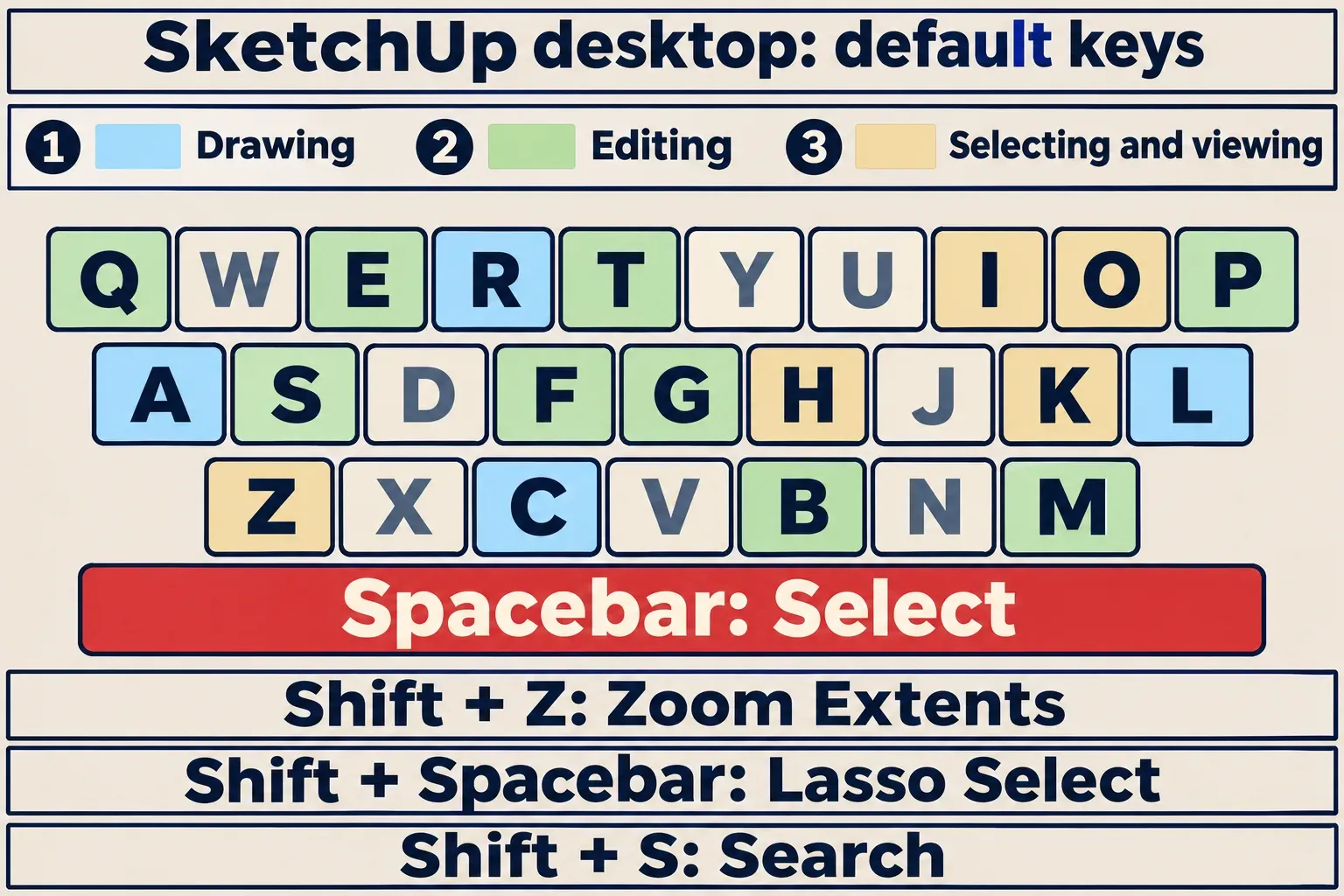
Press the letter and the tool is live; the cursor changes and the tool waits for its first click. The drawing letters make new edges and the faces they close. The editing letters change geometry that already exists, measure it or wrap it into a component. The selecting and viewing keys pick geometry or change how you see it, and never change the geometry itself. The letters and tool names here are the ones the Help Center prints on its default keyboard shortcuts table, which shows one list for both systems.
| Job | Key | Tool |
|---|---|---|
| Drawing | L | Line |
| Drawing | R | Rectangle |
| Drawing | C | Circle |
| Drawing | A | 2 Point Arc |
| Editing | M | Move |
| Editing | P | Push/Pull |
| Editing | Q | Rotate |
| Editing | S | Scale |
| Editing | F | Offset |
| Editing | E | Eraser |
| Editing | B | Paint Bucket |
| Editing | T | Tape Measure |
| Editing | G | Make Component |
| Selecting and viewing | Spacebar | Select |
| Selecting and viewing | Shift + Spacebar | Lasso Select |
| Selecting and viewing | O | Orbit |
| Selecting and viewing | H | Pan |
| Selecting and viewing | Z | Zoom |
| Selecting and viewing | Shift + Z | Zoom Extents |
| Selecting and viewing | K | Back Edges |
| Selecting and viewing | I | Image Igloo |
| Finding a command | Shift + S | Search |
Make Group and Flip have no entries in that default table, although Make Component sits on G. Both are useful candidates for a custom key. Image Igloo (I) is listed as a Photo Matching command rather than a drawing tool.

Orbit, pan and zoom without letting go of the tool
The camera letters are worth learning, but the mouse does the same work without leaving the tool you are drawing with. The Help Center's page on viewing a model lists the moves: scroll the wheel to zoom, centred on the cursor; hold the wheel down and drag to orbit while Line, Move or any other tool stays active; hold the wheel and the left button together to pan. The quick reference cards add that double-clicking the middle button re-centres the view.
Inside the camera tools, Shift changes the job. With Orbit active, holding Shift pans instead. With Zoom active, holding Shift while you drag changes the Field of View.
Keys held inside a tool, Windows and Mac side by side
Press the tool's letter first, let go, then use the modifier while the tool is working. Some modifiers are tapped once to switch a mode (Move's copy mode is a toggle); others work only while you keep holding them (Shift locking a direction). The SketchUp 2027 Windows card and Mac card give the following pairs. Use the key shown for your system instead of replacing every Ctrl with Command: Move copies, for example, use Ctrl on Windows and Option on Mac.
Move (M)
- Windows:
Ctrl; Mac:Option. Copy mode: the selection moves as a copy and the original stays; several copies in a row are allowed. - Both systems:
Shift, held. Locks the current inference direction. - Windows:
Alt; Mac:Command. Auto-fold. - Both systems:
Arrow keys. Up locks blue, right locks red, left locks green, down locks parallel or perpendicular.
Rotate (Q)
- Windows:
Ctrl; Mac:Option. Rotates a copy.
Scale (S)
- Windows:
Ctrl; Mac:Option. Scales about the centre. - Both systems:
Shift. Scales uniformly.
Push/Pull (P)
- Windows:
Ctrl; Mac:Option. Pulls a copy of the face, so the original face stays where it was. - Both systems:
Double-click. Repeats the last Push/Pull amount.
Rectangle (R)
- Windows:
Alt; Mac:Option. Draws from the centre.
Offset (F)
- Windows:
Alt; Mac:Command. Lets the offset result overlap.
Tape Measure (T)
- Windows:
Ctrl; Mac:Option. Switches between creating a guide and measuring only.
Select (Spacebar)
- Windows:
Ctrl; Mac:Option. Adds to the selection. - Both systems:
Shift. Adds or subtracts. - Windows:
Ctrl + Shift; Mac:Option + Shift. Subtracts.
Paint Bucket (B)
- Windows:
Ctrl; Mac:Option. Fills all matching adjacent faces. - Both systems:
Shift. Replaces the material on every matching face in the model. - Windows:
Ctrl + Shift; Mac:Option + Shift. Replaces the material on the same object only. - Windows:
Alt, held; Mac:Command, held. Samples a material to paint with.
Eraser (E)
- Windows:
Ctrl; Mac:Option. Softens or smooths edges. - Both systems:
Shift. Hides edges.
Read the Eraser modifiers before you drag it across a model. Plain Eraser deletes an edge; deleting a boundary edge can remove the face it closes. Shift hides the edge instead, so the face stays. Ctrl or Option softens it, keeping the faces while removing the visible seam. To undo softening, the Help Center says to tap Alt on Windows or Command on Mac and click the edges in its Eraser instructions for softening and hiding geometry. Follow that specific instruction: the Mac card prints Option + Shift instead. Undo is Ctrl + Z on Windows and Command + Z on Mac.
The Line tool has its own conflict. The Windows card prints Alt as the key that locks a direction; the Help Center's page on drawing basics and inferencing gives Shift for that on both systems and uses Alt (Windows) or Command (Mac) to cycle the Line tool's inferencing through All Inferences On, All Inferences Off and parallel or perpendicular only. Follow the Help Center: hold Shift once the line turns the colour of the axis you want, and the line stays on it wherever the cursor wanders.
The number you type after the click
Most of these tools take a value from the keyboard as well. Start the action, type the number without clicking anywhere, and press Enter: a Line length, a Rectangle as length and width such as 20,40, a Move distance, a Push/Pull amount, a Rotate angle, a Scale factor such as 1.5 for 150 percent. The value lands in the Measurements box and normally uses the model's units. Set those units before typing lengths, or add an explicit unit suffix such as 20mm when you need to override them.
Move copies take one more kind of value. Right after a copy with Ctrl or Option, the Help Center's page on using the Measurements box accepts 3x to turn that copy into a row of three copies at the same spacing, 3* for the same outward array, and 3/ to split the gap between the original and the copy into three equal spaces. The same entries work after a Flip copy. Use the outward form to repeat a spacing, and the division form to fill a fixed gap.
Give a command your own key in Preferences
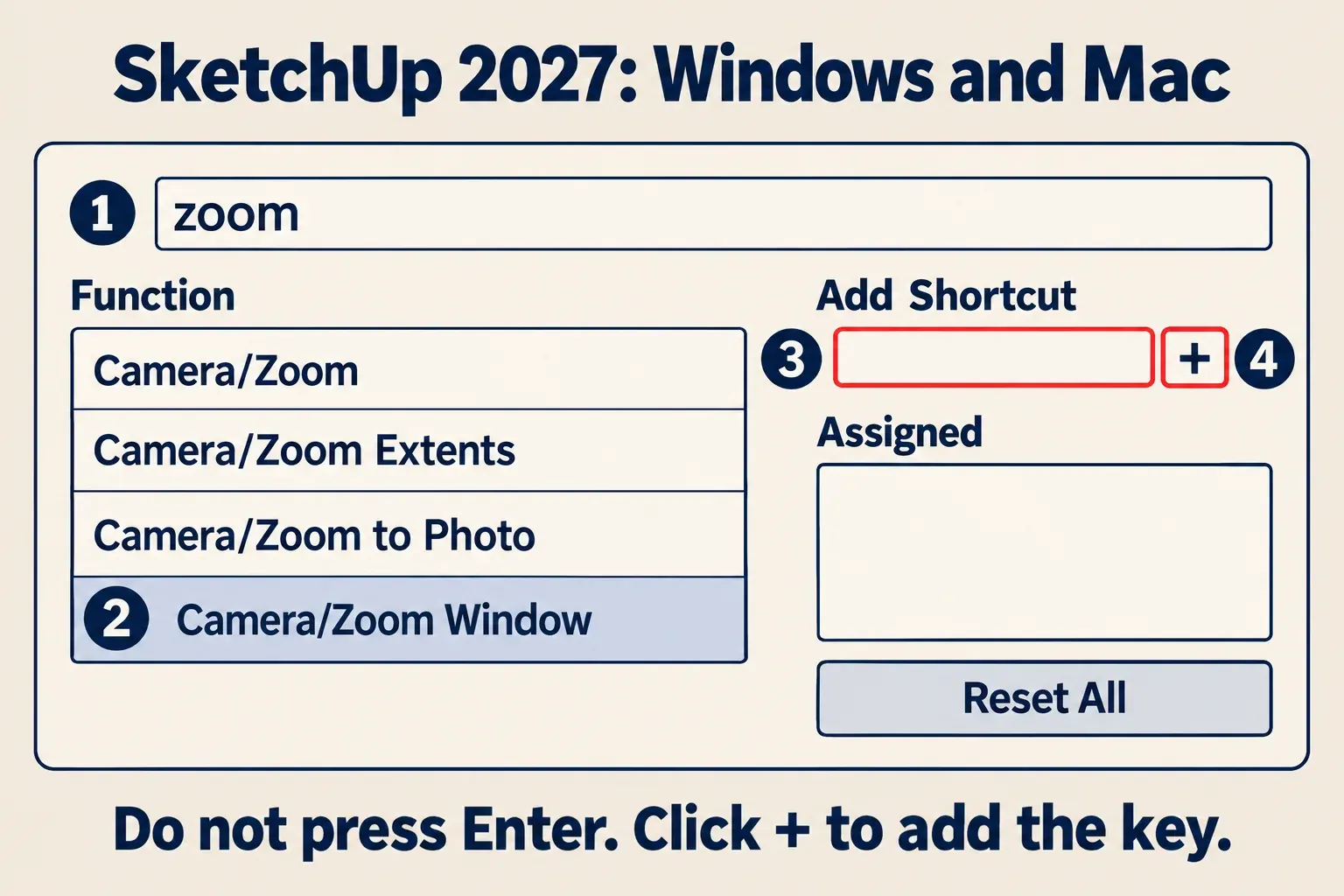
In SketchUp 2027, open Window > Preferences on Windows or SketchUp > Preferences on Mac, then choose Shortcuts. The two systems now share the same panel. On an older Mac release the menu item is SketchUp > Settings; Trimble explains the change in its guide to the Mac interface before SketchUp 2027. The Function list names commands by menu path, such as Camera/Zoom Window.
Before you type a key, know what a clash does. If the key already belongs to another command, SketchUp offers Keep Original or Replace, and Replace takes the key away from the command that had it. Some shortcut lists suggest K for Position Camera, for example, but K is the default for Back Edges, so choosing Replace there leaves Back Edges with no key at all.
- Type part of the command's name in the filter box above the Function list. Typing
zoomleaves Camera/Zoom, Camera/Zoom Extents, Camera/Zoom to Photo and Camera/Zoom Window. - Click the command, here Camera/Zoom Window. Any key it already has appears under Assigned on the right; an empty box means none is assigned.
- Click the Add Shortcut box and press the new key or combination. Do not press Enter: it erases what you just typed.
- Click + beside the box on either system. The key should appear under Assigned. If the Keep Original or Replace warning appears, choose whether to keep the old assignment or move the key to this command.
Those are the Help Center's steps for creating and editing shortcuts in the unified panel. A desktop shortcut cannot start with a number. Shift, Alt/Option and Ctrl/Command can be combined with other inputs; operating-system shortcuts are reserved, and existing defaults can be reassigned.
I'd give Make Group a key before anything else, since wrapping loose edges in a group early is what keeps them from sticking to the next shape you draw, and the default table only gives that one-key treatment to Make Component. Flip deserves a key too if you mirror parts often. Assign it in Preferences using the steps above; with Flip active, Ctrl or Option turns on copy mode, as the Help Center's page on flipping, mirroring and arrays describes.

Reset, back up and carry your keys to a new version
Reset All returns every shortcut to its default and clears custom assignments. If you only want to restore a default you replaced, assign its old key to its original command and choose Replace when asked. Save a record of custom keys before a full reset.
On Windows, the documented backup route is Export in the Shortcuts panel. The Help Center's import and export instructions say it saves a file named Preferences.dat unless you rename it; Import loads a .dat file back. Name the backup after the SketchUp version. For a text inventory of registered keys, the Ruby API method Sketchup.get_shortcuts returns one string per shortcut, with the key and command separated by a tab.
For carrying keys between desktop versions, I'd use File > Migrate Preferences, since it transfers Preferences customizations together. Select the older version, click Migrate, then restart SketchUp. SketchUp also offers this on first launch after an upgrade such as 2026 to 2027, as the instructions for migrating after an update describe.
A key that will not take, or will not stay
Work through these in order; each check costs less than the one after it.
- Did you press Enter after the key? It erases the value. Type the key again, then click + on either system in SketchUp 2027.
- Did a clash end with Keep Original? Then the key still belongs to the other command. Search for that command to see it under Assigned, and assign again with Replace if you want the key moved.
- Is the key reserved by the operating system? SketchUp refuses most with an alert, but the page on shortcuts that won't save notes that a reserved combination, Ctrl + Alt + Del in its example, may be accepted for the session and reset when SketchUp closes. Choose another key.
- Still on 2026.1 or earlier? The 2026.2 release notes name fixes for incorrect shortcuts under the Edit menu, hardcoded shortcuts that could be assigned through import, a built-in Ctrl+Q on Windows that could not be removed, and Spacebar not activating Select after another tool on Mac. If your problem is one of those, update first.
- Only then, the installation route the Help Center gives: sign out, close every SketchUp window, run the installer (on Windows with Run As Administrator) and set the shortcuts again. Save your shortcut record before taking this step.
SketchUp for Web and the iPad app keep their own keys
In the browser the defaults are, in the Help Center's words, nearly identical to the desktop ones, and hovering a tool or finding it in Search shows its key. The differences that catch desktop users are in the toolbars. The web Main Toolbar calls the Line tool Pencil and keeps it on L, with Select on the Space Bar and the same letters for Eraser, Paint Bucket, Rectangle, Push/Pull, Move, Rotate, Scale, Tape Measure, Orbit and Pan. The web Expanded Toolset puts Zoom Extents on Ctrl+Shift+E (CMD+Shift+E on a Mac) rather than Shift + Z, and gives Zoom Window Shift + W, a tool the desktop default table lists no key for. Circle C, 2-Point Arc A, Offset F, Zoom Z and Lasso Shift-Space match the desktop.
You can change keys in the browser too. The page on using shortcuts in SketchUp for Web shows that it can, from Search. Type the tool's name, hover its result, click the box on the right of the result (blank means no key yet) and type the new key. The browser rules differ from the desktop: Shift, Alt and Option work as modifiers, Ctrl and Command do not, and a number key needs a modifier. Reset all shortcuts sits in Search behind the Help icon and asks you to confirm with Yes before it clears your keys. The mouse works as on the desktop for orbit (hold the wheel), pan (hold the wheel and the left button) and zoom (scroll); trackpad users get their own Trackpad Controls page.

On an iPad with a hardware keyboard, many shortcuts work, and the iPad getting started page gives two ways to see them: hold Command, or search in the Omnibar, where each result shows its key. You can also type a measurement without tapping the Measurements box first. To change a key, tap the box holding the shortcut in the Omnibar results and enter a new one; to restore them all, use the gear icon in the Omnibar window's upper right corner or Settings > General > Restore Shortcuts, as the Omnibar page describes. The Settings item named Shortcuts is something else: it turns a floating toolbar on or off. The iPad Move tool page confirms M for Move, but the Help Center publishes no full iPad key list, so none is printed here; holding Command shows the keys your version has.
The sheet to print and keep beside the keyboard
For the letters alone, print the keyboard map above on one landscape page. For tool modifiers too, the Help Center's quick reference cards page links the SketchUp 2027 Windows and macOS PDFs in several languages. Each English card has three pages. Choose the card for your operating system: the tool letters match, but the modifier keys do not. The cards mark Pro-only tools and commands and cover desktop SketchUp; use the web or iPad routes above for those apps.
Keep the card beside the keyboard and start with L, R, P and Spacebar. Add Make Group to your own keys before building separate parts that must stay separate.