How to remove SketchUp from a dead computer and free the license
Try the replacement sign-in first, then reset your own activations if the limit is reached. Follow the current Admin Console or AMP controls, check a missing button, and handle Classic licenses separately.
For a SketchUp subscription, you can free a dead computer's activation from the replacement computer or your Trimble account. You don't need to uninstall SketchUp on the dead machine. I'd try signing in on the replacement first, because the subscription allows two instances or devices per application: if one activation is still available, no reset is needed. If you see “You have exceeded your allowed activations.”, reset your own activations and sign in again.
A Classic license with a serial number and authorization code follows a different process. Its authorization is removed inside the licensed copy of SketchUp, and uninstalling the program doesn't release it. Use the Classic section below if that's the license you bought.
Check the license and account before resetting
A subscription uses the Trimble ID assigned to your seat. SketchUp's sign-in requirements say a single-user seat belongs to its registered or assigned user, and signing in requires an internet connection. Use that person's account, even if someone else bought the subscription.
Have the Trimble ID, its sign-in method and MFA available. Save work on any other computer you still use before confirming a reset: the account-page reset logs out all your SketchUp instances, rather than selecting just the dead computer. You can reset only your own activations, including when you are an owner or administrator; a colleague must run their own reset.
For the replacement's desktop installation, choose a supported release that suits its hardware. The current support policy lists SketchUp 2025, 2026 and 2027. The account-page routes below also work before SketchUp is installed, so you don't need to complete an installation just to reach the reset.
Reset from the activation-limit message
SketchUp 2026 introduced an in-app reset that clears all activations and authorizes the current device. The current Managing Activations page names Manage Activations in the limit message. On a version offering the in-app reset, use this route:
- Open SketchUp on the new computer and choose Sign In. Sign in with the assigned Trimble ID in the browser tab that opens, then return to SketchUp after confirmation.
- If the exceeded-activations message appears, choose Manage Activations.
- Use the option to reset all activations and authorize the current device. Save work on other reachable computers before confirming.
- Confirm that SketchUp opens signed in and that the limit message has stopped. In Help > Sign Out, the email address or username identifies the account in use.
If the message sends you to an account page, use the matching route below. SketchUp 2025 predates the in-app reset and can use the account tools directly.
Reset through the Admin Console or AMP
Trimble's account-management guidance explains why two portals exist: many accounts moved to the Admin Console, while some still use the Account Management Portal (AMP), and accounts with several subscriptions may need both. Open the portal containing the subscription assigned to your Trimble ID.
Admin Console: Reset Authorized Devices
Open the Admin Console at Trimble's account page, or sign in on Trimble.com and choose My Products. The Admin Console reset instructions give this sequence:
- Select My Products in the left pane. Search for SketchUp or browse the product tiles.
- On SketchUp for Desktop, choose Reset Authorized Devices. The control appears only when the account has reached its activation limit.
- In the confirmation dialog, choose Reset Authorized Devices to log out all your SketchUp instances. Cancel leaves them unchanged.
- Open the Trimble icon in the top-right corner and choose Sign Out.
- On reachable devices where SketchUp was open, sign out of SketchUp, close it, relaunch and sign in again. Then sign in on the replacement computer.
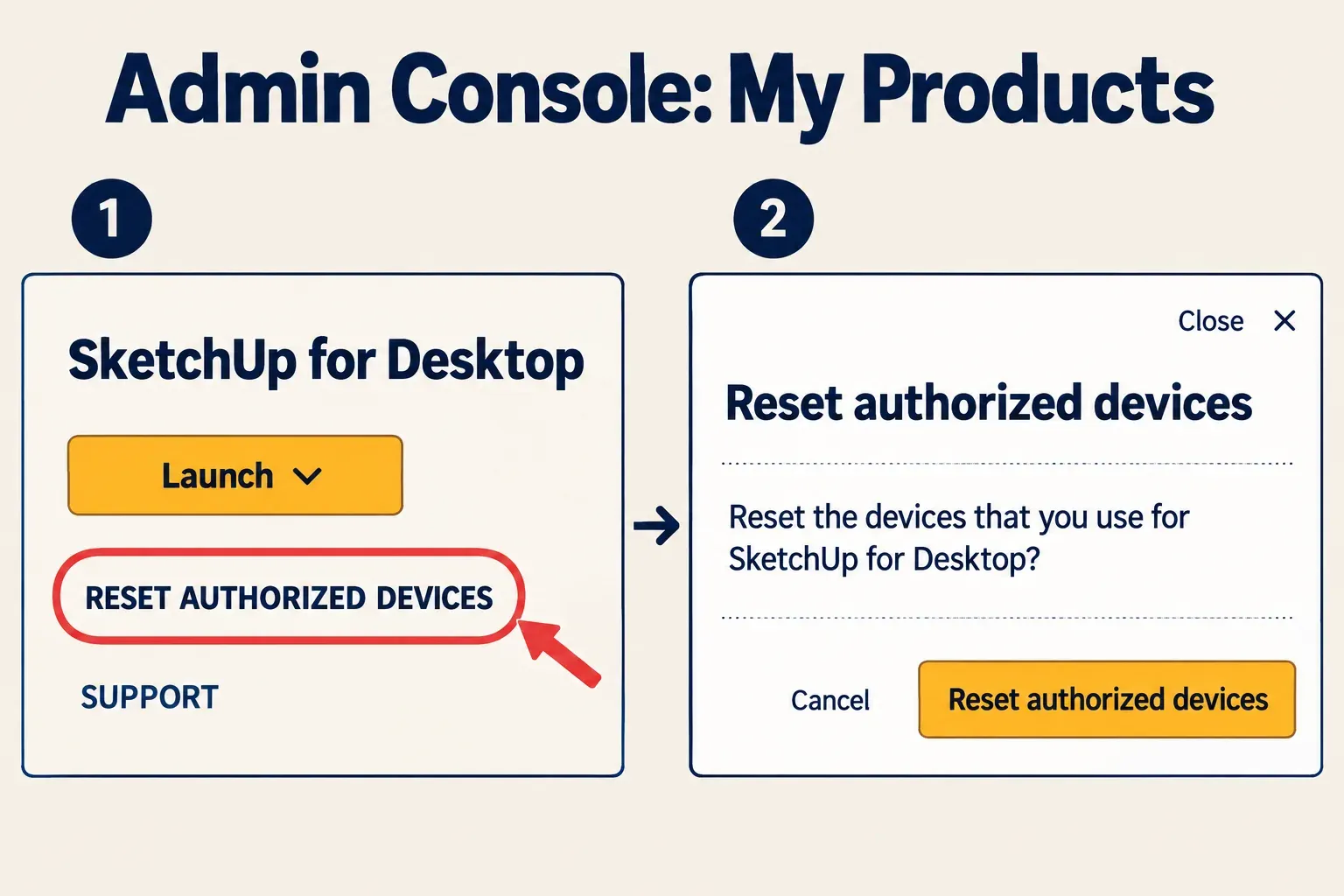
The dead computer needs no action. The sign-out and restart sequence applies to devices you can still reach; Trimble warns that leaving an open SketchUp session in place can bring the manage-activations request back.
Account Management Portal: Deauthorize All
In the older portal, follow the AMP deauthorization steps:

- Open My Products > View Included Applications. If you have several Trimble accounts and can't see that option, use the account dropdown below your email address on the left.
- Find the SketchUp tile and choose Manage Devices.
- In Confirm Deauthorization, choose Deauthorize All, then Done after confirmation.
- Use the profile icon in the top-right corner to Sign Out.
- Close SketchUp on reachable devices where it was open, relaunch and sign in again. If the error persists, sign out of the other applications using your Trimble ID and retry.
Missing button, wrong seat or a repeated error
A missing Reset Authorized Devices button doesn't establish that the replacement can activate. The control's visibility depends on reaching the limit for the account you're viewing. Check these separately:
- Account: compare the browser's Trimble ID with the one signing in to SketchUp. My Products shows products assigned to that user.
- Product: find the SketchUp for Desktop tile. SketchUp Go and Free don't include the desktop client.
- Portal: check the other account-management portal if the subscription hasn't moved, or switch the account in AMP.
- Message: distinguish the exceeded-activations message from an unassigned seat or an expired subscription. A device reset doesn't assign a product to a user.
Several versions on one machine can also produce the activation-limit message, according to Managing Activations. Two physical computers therefore aren't a complete count of every instance. A single-user subscription still belongs to one named person; the two-device allowance doesn't create a second person's seat.
If MFA was on the lost device, use a Trimble recovery code. Each code works once. Sign in at myprofile.trimble.com, set up a working replacement MFA method, and only then remove the old method.
If the correct account still fails after a reset and the reachable devices have been signed out and restarted, collect the exact error, Trimble ID, plan, SketchUp version, operating system and reset route. In Trimble's Support Center, an Account Owner or a user with assigned access can choose Create a Case > General Case for licensing. The support eligibility rules exclude Free and trial users, and supported desktop versions are required for version-specific assistance.
Classic license on a dead computer
A Classic license is tied to the version purchased. It doesn't turn into a subscription by signing in. Removing its authorization requires opening that licensed SketchUp installation:
- Windows: Help > License > Remove License, then confirm.
- Mac: SketchUp > License > Remove License, then confirm.
Uninstalling SketchUp leaves a Classic license authorized on the device. Deleting folders or cleaning the Windows registry doesn't replace Remove License. The AMP's Classic-license rule also excludes managing or updating these licenses through any portal, so the subscription reset buttons aren't a Classic fix.

A single-user Classic license allows two compatible devices, with only one running that licensed version at a time. If an authorization remains available, open the licensed version on the replacement, choose Add Classic License > Classic > Add License, and enter the serial number and authorization code. SketchUp 2017 and older can no longer be newly authorized, even if you still have the installer and code.
When both authorizations are occupied and no licensed device can be opened, there is no documented self-service remote Classic reset. Don't build a replacement plan around a promised support override: Trimble ended Classic Maintenance and Support in November 2020 and says its teams can no longer update account information without an active SketchUp subscription.
The July 2025 discussion about a dead computer running SketchUp Pro 2020 shows why the distinction matters. One reply suggested online activation management; the license holder later reported that support declined the request because 2020 was unsupported. That report doesn't establish an outcome for every account, but it is a reason to verify the license type before following subscription advice.
For the license details, search the original email from sketchupmail@sketchup.com. On a surviving authorized computer, the serial number is under Help > License on Windows or SketchUp > License on Mac. Keep serial numbers and authorization codes out of public forum posts.
Model files and paid extensions are separate
Freeing an activation doesn't recover models stored only on a failed drive. For models already saved to the cloud, SketchUp's Trimble Connect commands include Open from Trimble Connect and Launch Trimble Connect for browsing projects and version history. Access the project containing your saved model; signing in doesn't upload files that never left the old drive.
A local-only model needs an existing backup or recovery of the old storage. Preserve that drive rather than wiping it to solve a licensing error. On the replacement, SketchUp supports saving locally or to Trimble Connect and warns against syncing the only SKP copy directly with OneDrive, Google Drive or company network storage.
Paid extensions have separate licensing. Extension Warehouse's license-limit guidance describes a two-instance limit and removal from other devices. If the unavailable computer is blocking an extension, check that extension's own licensing support; resetting SketchUp doesn't establish that the extension's activation was released.
If the old computer starts again
For a subscription, choose Help > Sign Out, then quit SketchUp completely before retiring the device. For a Classic license, remove its license first. Only after preserving the model files and releasing the reachable authorization should you follow the official uninstall procedure if you want the program removed.
The replacement is ready when SketchUp opens with the assigned account, the activation-limit message stays cleared and your saved model opens from its actual storage location. If your work requires another person's seat, compare the available plans before changing the subscription.