SketchUp groups vs components: choose what changes together
Choose the right container for a single object, repeated part or whole assembly, then check exactly which copies an edit will change.
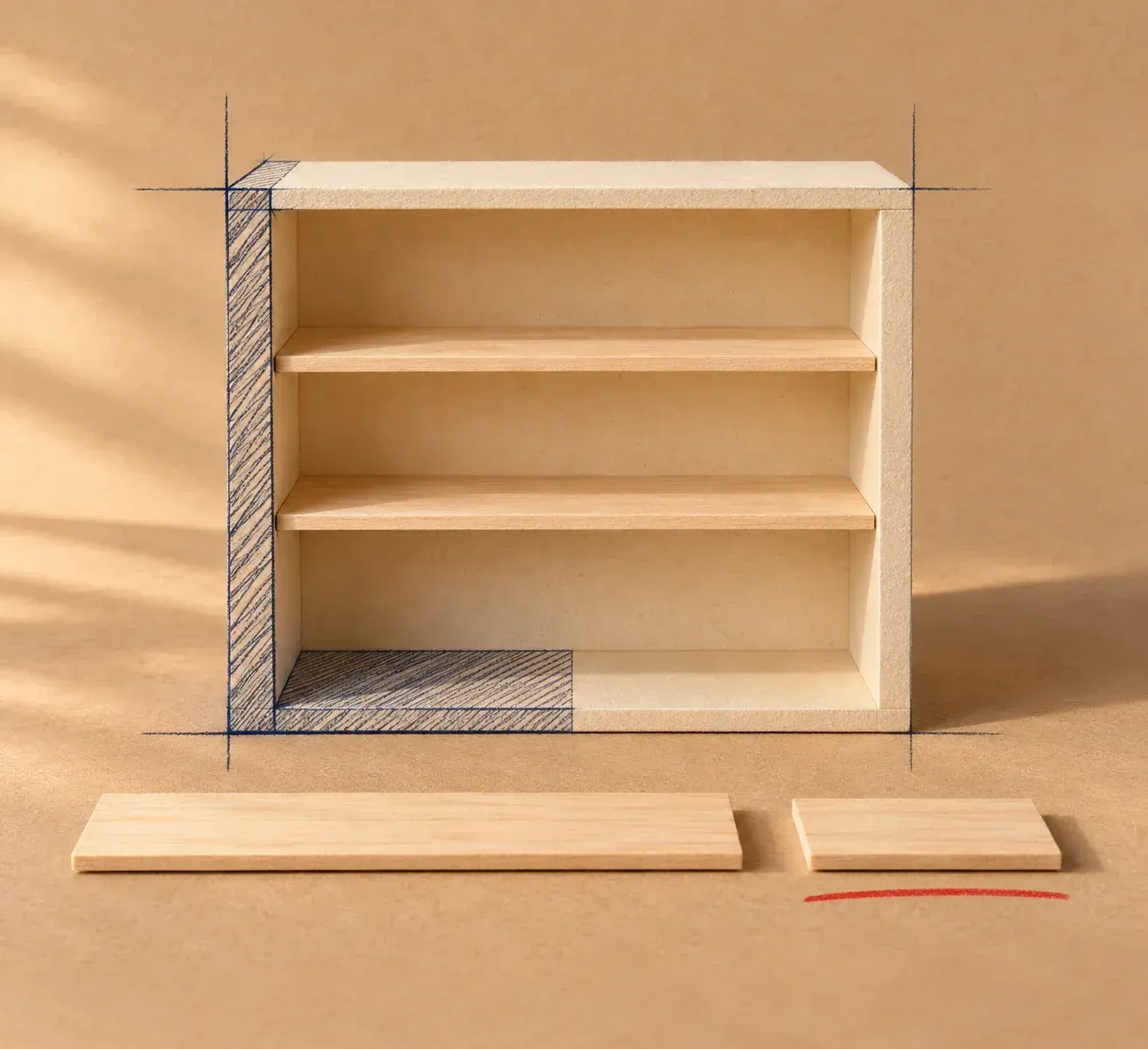
Use a group for a one-off object or assembly you want to edit independently. Use a component for repeated parts that should share later geometry changes, such as shelves, cabinet doors or table legs. Both separate their contents from surrounding edges and faces; the deciding question is which copies should change when you edit a part.
I'd make the repeated shelves components and put a one-off bookcase in a group. A correction to the standard shelf then updates the set, while the outer group lets you move the bookcase as one assembly. If the whole bookcase repeats, make that outer assembly a component too.
Choose by the change you want to make
| Your task | Choose | What happens next |
|---|---|---|
| Keep a unique wall or worktop separate | Group | Edit its contents without joining them to neighboring loose geometry. |
| Repeat identical shelves and revise their shape together | Component | An edit inside one instance updates the other instances of that definition. |
| Move a cabinet containing separate boards | Outer group, or component if the cabinet repeats | The assembly moves together while its parts retain their own containers. |
| Shorten one shelf while keeping the others standard | Make that component instance unique | The variant gets a separate definition before you edit its geometry. |
| Hide cabinets for a drawing view | Tag on the cabinet containers | Visibility changes; tags don't separate loose geometry. |
A group can be copied. Its loose contents can then be edited independently in each copy. The useful distinction is whether you want that independence or a shared definition, rather than whether copying is allowed.
Components also make sense for a part used only once when you want to keep it as a reusable asset. SketchUp lets you save a selected component as a separate .skp file. A one-off object doesn't have to be a group; choose the container that suits its next use.
Separate the definition from the placed instance
A definition holds the shared component contents. An instance is one placed copy of that definition. In SketchUp's definition and instance model, changing a face or edge inside one instance changes the definition and therefore the other instances based on it.
Picture three copies of Shelf-standard. Open one shelf and cut a notch into its raw geometry: the notch appears in all three. Make the same edit to raw geometry inside one of three separate groups and only that group changes.

Transforming a closed instance is different. Move, Rotate, Scale or Flip applied to the whole instance don't rewrite its shared contents. The whole-instance editing rules allow differently scaled or oriented instances to remain linked. A mirrored leg can still share geometry changes with its partner.
Scaling the closed shelf may also stretch its thickness or details. For a shorter manufactured part whose thickness should stay fixed, I'd make a unique definition and edit the length inside it. Check a known dimension afterward; a different-looking instance isn't proof of an independent definition.
Create one complete part before making copies
The menu paths here are for SketchUp Desktop. Start with the part's faces and bounding edges selected, with no neighboring wall or worktop included. Grouping only a visible front face won't turn the whole board into an object.
- Select the complete part. Inspect the selection from another angle if necessary.
- Make a group with Edit > Make Group, or context-click the selection and choose Make Group. A bounding box should surround the selected object, as the group creation instructions describe.
- For a component, use Edit > Make Component. Give its Definition a useful name, such as
Shelf-standard. - Keep Replace Selection with Component enabled and click Create. Clearing that option creates a definition in the In Model collection but leaves the selected geometry as it was. The component creation options explain this easy-to-miss distinction.
- Click away, then select the part once. The whole part should select as one object. Open it only when you need to edit its contents.
Make one component, then copy that component instance. Making several similar objects separately doesn't establish a shared definition. Decide which boards repeat before building the full woodworking assembly.
If an existing group will become a repeated part, select the closed group and use its Make Component context command, then make your copies from that component. Converting separate groups one by one isn't a substitute for copying one definition. Don't explode a sound container merely to change its role.
Make one copy different without changing the originals
Use Make Unique before editing an exceptional component. Renaming the instance or moving it aside doesn't separate its definition.
- Select the closed component instance that needs a different shape.
- Context-click > Make Unique. In Entity Info, its Definition changes to a separate definition, often with a numbered suffix.
- Double-click the unique component to open its editing context. Change the required face or edge.
- Close the context and inspect the pair. The variant should have the new shape; an original instance should retain the old one.

This is SketchUp's documented sequence for changing a single component instance. Name the new definition for its purpose, such as Shelf-short, and copy that variant when you need more short shelves.
You can also select several instances of the same definition and apply Make Unique together to create a linked set of variants. The two-box Make Unique example shows that selected set staying linked to itself while separating from the originals. Don't make every standard shelf unique if all of them should still receive the same corrections.
If you've already edited every shelf by mistake, undo the unwanted geometry change first. Making one instance unique afterward preserves its current shape; it doesn't restore the other copies to their earlier geometry. Separate the intended variant, then redo the change.
Make the correct level unique inside a repeated assembly
An outer container doesn't erase the component relationships inside it. Two separate cabinet groups can contain the same shelf definition. Opening either cabinet and editing that shelf's raw geometry can therefore change shelves in both cabinets.
There are two decisions when the cabinet itself is also a repeated component. Make the chosen cabinet independent first, then separate any child part whose geometry must differ. The nested-component explanation confirms that Make Unique changes the selected definition; it doesn't recursively make every child definition unique.
- Select cabinet B from outside it and use Make Unique if it shares its cabinet definition with cabinet A.
- Open cabinet B and select the shelf that needs to change. Keep the shelf closed at this point.
- Make that shelf unique before opening it and editing its faces. Work through any additional shared component levels on the path to the geometry you intend to change.
- Inspect both assemblies. Check the modified shelf, the standard shelves in B and the shelves in A. Only the intended variant should have changed.
The same outer-first sequence is given for a duplicated pallet with nested planks. If the outer cabinet is already an independent group, you can start at the shared shelf. You don't need to separate child definitions that should remain common.
Removing a shelf instance from a unique cabinet is a change to that cabinet's contents. Cutting a hole into the shelf's faces is a change to the shelf definition. Identify which of those operations you need before making more definitions.
Use Outliner to inspect the hierarchy instead of adding containers until an edit happens to work. With Select active, double-click an object to open its context; choose Edit > Close Group/Component to leave the current level. SketchUp's object context and nesting rules describe the dotted context box and these controls.

Use tags for visibility and containers for separation
Keep raw edges and faces Untagged, then assign tags to the groups or components you need to show and hide. SketchUp's tag guidance recommends containers for visibility control. A cabinet tag can hide the cabinet, but it can't prevent loose cabinet geometry joining a worktop.
In a kitchen layout, containers define editable objects, definitions connect repeated parts, and tags control the objects visible in a view. Outliner shows the hierarchy; it doesn't replace that tag system.
A group or component isn't automatically a solid, either. SketchUp's solid definition requires a finite closed volume. Check Entity Info for Solid Group or Solid Component before using Solid Tools on closed geometry. Adding a container or tag doesn't repair holes or internal faces.
Check the cause before breaking the model apart
| What happens | Check next |
|---|---|
| Every copy changes | You're editing a shared definition. Undo an unwanted edit, then Make Unique at the correct level before redoing it. |
| Copies don't change together | They may be groups, different definitions or unique variants. Also check whether you transformed a closed instance instead of editing its contents. |
| Make Unique is missing or unavailable | Select a closed component, not raw faces or a group. Check whether another instance of its definition exists and whether a shared parent needs to be made unique first. |
| A part sticks to its neighbor | Check for loose geometry outside the intended container. Hiding it or assigning a tag won't separate it. |
| The rest of the model disappears while editing | On Desktop, turn off View > Component Edit > Hide Rest of Model when you need surrounding geometry for reference. This is a view setting for the editing context; you do not need to explode the part. |
| Push/Pull won't reach the face | Open the correct object context. Exploding the assembly isn't required to edit a face inside it. |
The cabinet modeling discussion shows how extra nesting and confusion about editing contexts produce these problems. Finish by checking one standard part, one unique variant and the outer assembly. Keep the definitions shared where future corrections should travel, and separate only the parts whose geometry needs to diverge.