SketchUp 2025: materials, Environments and patch fixes
For anyone still on SketchUp 2025: pair Photoreal Materials with an environment, place each change by plan, and identify the fixes in 2025.0.1 to 2025.0.3. Style Builder left the package.
SketchUp 2025 added Photoreal Materials and image-based Environments to the desktop modeler. Generate Textures added PBR maps to older materials, while Style Builder left the package. I'd start with a copy of a familiar model because the finish and the environment light now need checking together.
SketchUp 2025 is no longer the latest release: 2027.0 shipped in October 2026, and its release notes list what came after. For a new setup, I'd choose the current release once the hardware and required extensions support it. It needs an Apple silicon Mac or Windows 11; 2026.2 remains the supported legacy option for an Intel Mac. The rest of this page stays with 2025 for anyone still running it or matching a project to its patches.
Match the change to the 2025 desktop release
The February 25, 2025 release was SketchUp 2025.0, build 25.0.571 on Windows and 25.0.570 on Mac. The later 2025.0.1, 2025.0.2 and 2025.0.3 releases fixed specific faults; their differences matter when a tool behaves differently from the launch description.
The 2025 launch feature list gives these changes their plan and surface. This table describes availability at launch; use the current plan details when buying a subscription:
| Task | Availability at the 2025 launch |
|---|---|
| Show material finish and environment lighting in the model | Photoreal Materials and Environments in desktop Pro, also included in Studio; Go got both in SketchUp for iPad and for Web |
| Carry the model appearance into drawing sheets | LayOut improvements in Pro, also included in Studio |
| Choose a Revit 3D view for import | Studio at launch; the Revit Importer runs on Windows |
These are numbered desktop releases for Windows and Mac. The official downloads page treats the other surfaces separately: SketchUp for Web runs the latest web version, and the iPad app updates through the Apple App Store. A desktop 2025 installer doesn't choose the version running in your browser.
Give the material a finish and a light source
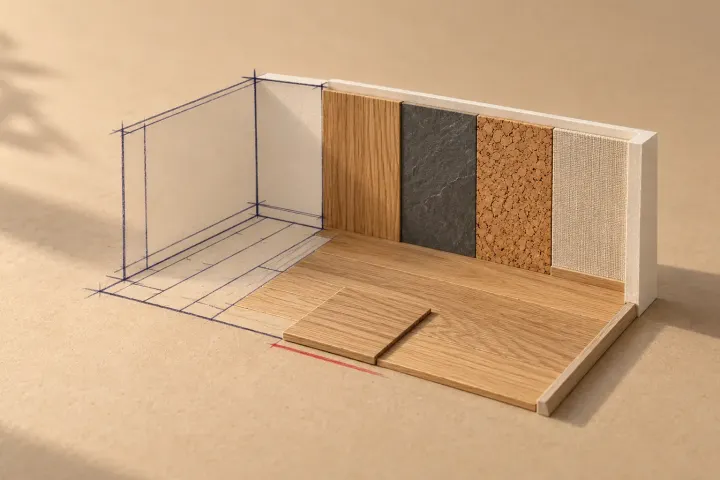
Photoreal Materials uses physically based rendering, or PBR, textures to make a material react to its environment. The 2025 material changes also converted the default material libraries to Photoreal Materials. Four maps describe different parts of the finish:
- Metalness controls the material's metallic reflection character.
- Roughness describes rough and smooth areas of the surface.
- Normal adds the appearance of depth without changing the object's shape. A grain pattern can look raised while the face and its outline stay flat.
- Ambient Occlusion adds soft shading in corners and crevices; stronger values darken those shadows.

First check Preferences > Graphics > Graphics Engine: Environments need the new graphics engine. The Classic engine does not provide that workflow. If the new engine is unavailable on your hardware, changing a texture or skydome checkbox will not restore it.
Check the material in a compatible face style. The current Face Styles guide names Display Photoreal Materials in the style's Face Settings and calls for an environment to show the full effect. A texture image alone doesn't describe all four map properties.
In the 2025 Environments panel, choose a default environment or add your own HDRI or OpenEXR file; File > Import is another documented import route. The environment supplies a 360-degree setting and lighting for the model. Start with one of the defaults so you can judge the finish before introducing a different environment file.
The skydome and reflection controls do different things. Use Environment as Skydome shows the photographic sky backdrop. Turn it off and the backdrop disappears, but the environment still supplies light. Use Environment for Reflections lets Photoreal Materials react to that environment as a reflective light source. Check those switches separately when a surface looks right but the background is wrong.
Set Sun Location designates a point in the environment as the shadow source. It turns Shadows on if needed and overrides the time of day in the Shadows panel. If you need a scene's chosen time of day, account for that override before changing the lighting.
For graphics problems on a current release, the SketchUp system requirements page lists the engine's DirectX 12 and Metal 2 floor. If a material is missing altogether, use the checks for materials that do not show before rebuilding the face.
Generate maps for an older material
Generate Textures arrived in 2025 to suggest PBR maps for an existing material, and it requires an internet connection. The Generate Textures guide marks an upgraded material with a cube preview and a gold sparkle symbol, so you can tell which materials it has touched. For the AI tools that spend Trimble Credits, AI Render and Generate Object, the SketchUp AI guide covers the current route and the credit budget.

Duplicate the material before generating maps again if you want to keep its current finish. The Generate Textures guide recommends that copy because a new generation replaces the material's map settings.
- Open Materials and select the material, or sample it from a face with Paint Bucket.
- Open the Edit tab and click the Generate Textures icon at the lower right of the material preview.
- Wait for the material to update, then check the new finish under your chosen environment. The cube preview and gold sparkle identify the upgraded material.
For a presentation that needs a separate rendering workflow, choose among the render options according to the output you need.
Find content and keep older material collections
The refreshed 3D Warehouse Content Library brought subscribers organized models, materials and Environments. Live Components left SketchUp Labs and gained custom painting in this release. You can paint them with your own materials; a Live Component saved before 2025 needs to be configured once to enable painting, while newly downloaded ones are immediately paintable.
If a familiar material collection is missing, recover the collection from your previous installation rather than replacing every material in the model. The official migration instructions give separate routes:
- Windows: find the collection under
C:\ProgramData\SketchUp\SketchUp[Version Number]\SketchUp\Materialsand copy the folders you need to a safe location. In the new installation, choose Materials > Details > Add collection to favorites, then select the copied folder. - Mac: context-click the previous SketchUp app and choose Show Package Contents. Copy the required collection from
Contents/Resources/Content/Materials. In the new app, choose SketchUp > Settings > Files > Materials > Open This Folder in Finder and paste the collection there.
Apply visibility to scenes and update shared parts deliberately
Apply Tags to Scenes lets you carry selected tags' visibility into selected scenes. Set the visibility first, then choose the scenes that should receive it:
- In Tags, select the tags or tag folders and set their visibility.
- Select the target scenes.
- Context-click in either the Tags or Scenes panel and choose Apply Tags to Scenes.
Return to one of those scenes and check the visibility you intended to apply. Keep the selection narrow when only a few scenes need the change.

The Trimble Connect changes address the files and parts themselves. Import from Trimble Connect brings a stored .skp file into the current model. Save Out replaced Save As in the 2025 File menu and also appears when you context-click a selection. It can save the whole model or a selected entity or component locally, to Trimble Connect, or to 3D Warehouse.
Reload overwrites the selected content with the last saved version. Preserve any local edits you need before using it. Reload can take that saved version from Trimble Connect, a local file or 3D Warehouse. Choose it when the saved component is the version you want in this model; don't expect it to merge competing edits.
Move extensions through the 2025 migration route
Use this Labs route only if the project must land on 2025; newer releases bundle the migrator and offer it on first launch. The launch version of Extension Migrator was a SketchUp Labs extension. For a move from 2024 to 2025, use the launch-documented route in the target 2025 installation:
- Open the SketchUp Team Extension Migrator listing, check its 2025 and operating-system compatibility, then install it from Extension Warehouse.
- Choose Extensions > Migrate Extensions.
- Find the folder containing your previous installation's extensions. The helper assists with installing those extensions in the new version.
Before moving a working project, check each extension developer's 2025 compatibility and platform support, along with its license or sign-in procedure. Keep the previous extensions folder and your original project files while evaluating the target setup. The migration helper's ability to find extensions is not a compatibility or license-transfer guarantee.
Style Builder was no longer included or supported in the 2025 release. If it's part of your workflow, resolve that dependency before replacing your earlier setup, and preserve your custom style files.
Follow the remaining changes into the model or sheet
Rotation and labels in the model
With Rotate active, rotation grips appear on group and component bounding boxes. The protractor can align with a component's bounding box and snap to its midpoint grips. That gives you a defined reference when the component sits at an angle to the model axes.
The Text tool's measurements now update when the referenced entity changes. A dynamic value is marked by <> in the text field; type custom wording before or after that marker to keep the measurement dynamic. Use that arrangement for a label whose measured part may still change.
The 2-Point and 3-Point Arc tools make repeating a tangent corner easier: after an arc is tangent to both edges, SketchUp indicates other eligible intersections on that face; double-click to repeat it. Click the convex side of an arc to unround a corner. For snapped assemblies, Select > Connected by Snaps selects the connected entities, and the Down arrow locks a parallel inference while using Snaps.
IFC and Revit import
For IFC, the 2025 exchange changes create a tag for each IFC class in an imported file and preserve its source IFC 2x3 or IFC 4 version. The release notes also describe improved IFC 4 hierarchy preservation and PropertySets round-tripping. Check the required hierarchy and properties in the receiving workflow before relying on the exchanged model.
The Revit Importer added a dialog for choosing an available 3D view from the .rvt file, bringing that view's 3D-element visibility into SketchUp. It doesn't import 2D elements. The importer also uses the Revit level hierarchy to build components in Outliner. These were Studio changes at launch, and the Revit Importer is Windows-only.
The Windows 2025 installer also offered Studio subscribers a V-Ray download and installation option.
LayOut viewports and drawing tools
LayOut 2025 displays Photoreal Materials and Environments in SketchUp viewports. Its SketchUp Model controls can override Ambient Occlusion for the selected viewport, including Distance and Intensity. Environment controls can change rotation and skydome settings or add an environment to that viewport. Treat those changes as selected-viewport overrides when checking consistency across a sheet.
Move, Rotate and Scale can be activated before selecting an entity. Join and Split can turn a selected rectangle into line segments and join the segments back into a complete rectangle. The Pages panel also gained context-menu printing or export for a selected page or range, useful when only part of the drawing set needs to leave LayOut.
Read the patch number before diagnosing a fault
2025.0.1: March 11, 2025
2025.0.1 is build 25.0.575 on Windows and 25.0.574 on Mac. Its Windows fixes included a startup failure caused by adding a custom online-status checking URL and a delay between double-clicks when entering nested groups or components.
2025.0.2: April 15, 2025
2025.0.2 is build 25.0.634 on Windows and 25.0.633 on Mac. It fixed textures assigned to tags failing to appear on geometry and several crashes involving rotated arrays. Rectangle edges drawn on a face in Parallel Projection became visible before committing the rectangle. Windows also received a fix for opening filenames containing non-English characters.
For LayOut, this patch fixed a crash when updating a SketchUp model and copied attached labels moving when a viewport or another attached entity changed. It also repaired saving and restoring viewport edit/output resolution settings.
2025.0.3: June 3, 2025
2025.0.3 is build 25.0.660 on Windows and 25.0.659 on Mac. It fixed a crash when copying a text label attached to a vertex and a Mac crash when opening some large models. Untagged color changes no longer needed a model reopen to appear.
The Revit Importer installer was updated to the Extension Warehouse 2025.05.28 version to fix V-Ray 7 and ProScan access issues. In LayOut, copied or moved auto-text labels received a fix for becoming disconnected.
Photoreal Materials can make files larger than the older materials did, which is why the 2025 release added the cleanup reminder. Keep the Purge Unused reminder fixes distinct. The launch release added an optional reminder when saving, with an opt-out in the dialog or General Preferences. Version 2025.0.2 fixed the opt-out failing to persist across sessions; 2025.0.3 made Don't Show Again apply to all activations. An early 2025 build asking again is a patch-history issue to check before changing your cleanup routine.
Choose the desktop file your project needs
If the project needs to remain on 2025, choose the separate 2025 Mac or Windows 64-bit entry on the official downloads page and match its full version to the patch notes above. For a decision about moving beyond that release, compare the changes introduced in SketchUp 2026.