SketchUp AI: choose the right feature and budget credits
Choose a SketchUp AI feature by its output: material maps, an image or geometry. Check the app, plan, credit cost and image rights before generating another version.
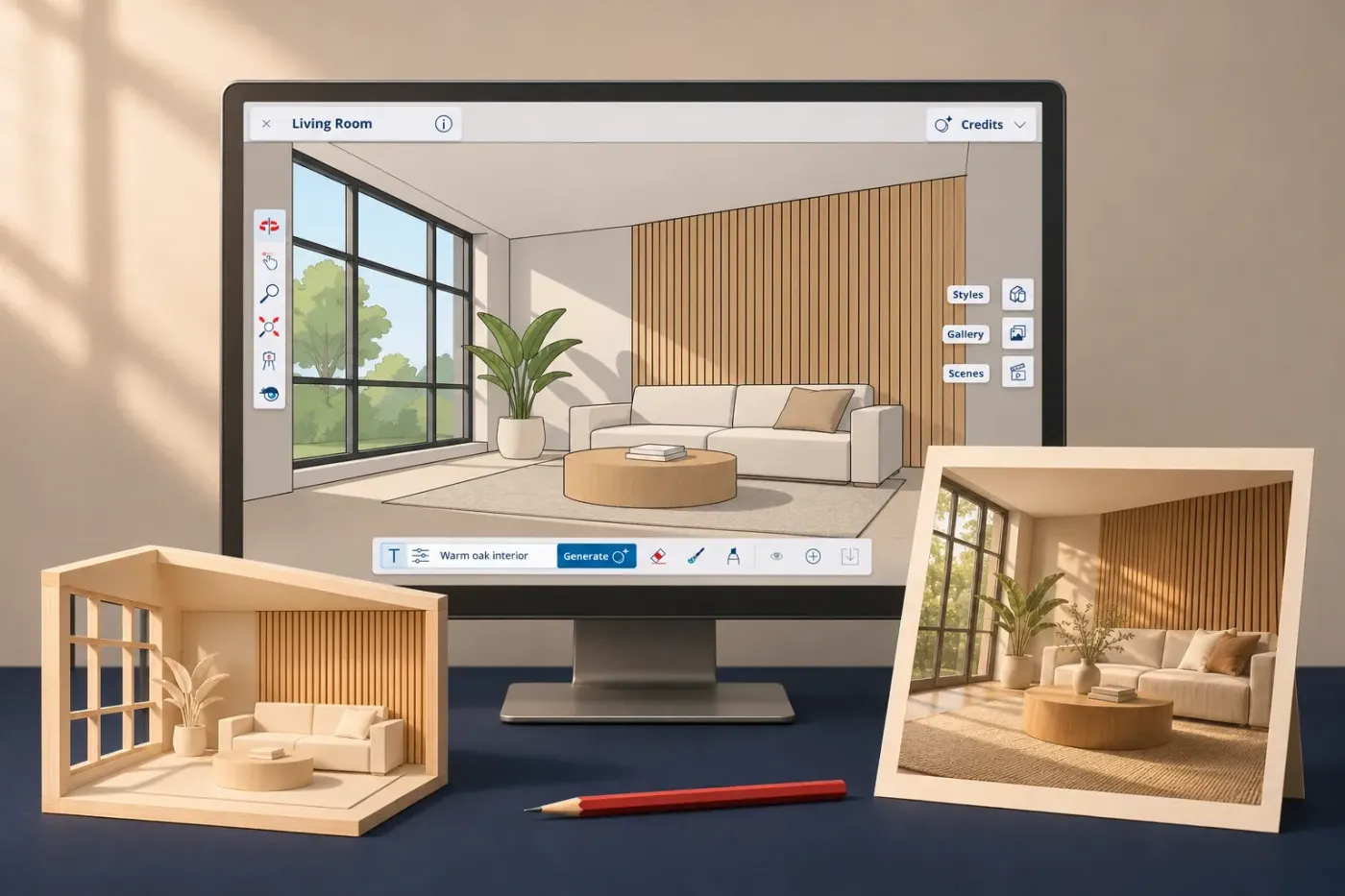
SketchUp AI creates images from model views, generates 3D objects and answers modeling questions in AI Assistant. Choose AI Render for an image and Generate Object for geometry; Generate Textures adds surface maps to an existing material. Help is free, while a completed AI Render image costs 10 Trimble Credits and a generated object costs 30.
Choose the result you need to keep
Use Generate Textures when an existing material needs more surface detail in the model. Choose AI Render to explore the appearance of a particular view. For a new 3D object, the Generate Object feature in AI Assistant creates geometry from text or an image; Assistant's Help answers SketchUp questions and is free even in unpaid SketchUp for Web.
I'd begin with the output you need to deliver. An attractive image can help choose a finish, but it doesn't update the model's dimensions or make an object ready to manufacture. Keep the editable SKP as the design record and check the AI output against it.
The broader AI toolset also includes 3D Warehouse Image Search, AutoShape and Scan-to-Design. Image Search finds existing assets from a picture; AutoShape recognizes sketches and Scan-to-Design creates geometry from scans in SketchUp for iPad. Those are different starting points from generating an object with a prompt.
Trimble's SketchUp AI page also lists the SketchUp Connector for Claude, which works inside Claude rather than SketchUp. With a Trimble ID and a Claude account, it builds a new .skp file from a text conversation; it can't edit or render an existing file. Free SketchUp users can generate up to 30 models with it before they need a paid subscription. Download the SKP you want to keep: these models aren't stored in Claude between sessions.
Generate Textures stays with the material
Generate Textures arrived in SketchUp Desktop 2025.0 and needs an internet connection. It analyzes an existing material and creates Metalness, Roughness, Normal and Ambient Occlusion maps. Those maps affect the material's surface appearance; the feature is separate from producing a finished image of the whole room.
On Desktop, the material-editing route for Generate Textures starts with selecting or sampling the material:
- Open Materials and select the material, or sample it from a face in the model.
- Open the Edit tab. Click Generate Textures at the lower right of the material preview.
- Look for the preview to become a cube with a gold sparkle. With the Photoreal Materials face style active, the material also changes in the modeling window.

Duplicate the material before generating another set if you want to keep the current maps. For the broader material and lighting changes around this feature, see the SketchUp 2025 changes.
AI Render starts from a view of your model
AI Render, formerly SketchUp Diffusion, combines your active viewport with a text prompt or preset style and produces an image. Use it to explore a finish or mood, then compare its openings and small edges with the model before presenting the design.
AI Render needs an internet connection and Trimble Credits. Go, Pro and Studio include a monthly allowance. For Free Web users, Trimble's pricing FAQ offers AI Render and Generate Object with purchased credits, although its setup guide still lists a paid subscription as a requirement. Check whether the tool is available in your Free account before buying credits. The app still comes from your base plan: Go covers Web and iPad, while Pro adds Desktop. A Go subscription doesn't add the Desktop modeler.
SketchUp AI is built into Desktop version 26.1 and later. AI Render runs as a preinstalled extension in current Desktop releases. If it is missing, search for AI Render in Extension Warehouse, click Install, then close and restart SketchUp. Keep the extension current through Extension Manager. Web and iPad include AI Render in the Expanded Toolset. The extension's free installation doesn't make each cloud generation free.
Set the camera before writing the prompt. Hide guides or axes you don't want interpreted as design edges, and give important surfaces clear material or color cues. I'd save a camera scene first so that a later design change can be compared from the same view. For a room, a useful starting prompt is: “Living room with pale oak cabinetry, cream plaster walls and soft morning light.” Change one design choice at a time so you can tell which version answers the brief.
For AI rendering on SketchUp Desktop, begin with the model open and the camera showing the view you want:
- Click AI Render on its toolbar. The AI Render window shows a snapshot of the model view.
- If you have edited the model, click Refresh so that the snapshot includes those changes.
- Enter an English description in Text Prompt, or choose a style preset, then click Generate.
- Inspect the image against the model. Check small openings and railings before deciding to keep it or spend credits on another version.
When only part of an image needs work, Erase, Paint and Sketch refine the selected area: Erase removes an unwanted element, Paint applies a prompt to an area, and Sketch combines drawn marks with a prompt. Each new completed output still costs credits. To supply a JPG or PNG style reference, choose the No Style preset and Add a Reference Image. These edits change the image; make any corresponding design changes in the model itself.
Keep a chosen image with Add Scene in the model and Save for a device copy. The Gallery contains this session and the last 30 days, so it isn't a permanent project archive. For distorted Desktop output, check the window and monitor configuration: Trimble flags unusual aspect ratios and resolutions above 4K as possible causes.

Generate an object from an image
To place generated geometry in a desktop model, use the Generate Object image workflow. A completed object costs 30 Trimble Credits. Choose a PNG, JPG, JPEG or HEIC image no larger than 50 MB, and make sure you have permission to upload it.

- Choose Extensions > AI Assistant, then select Generate Object. Click Select Your File and choose an image; repeat for up to four images. A white background works best.
- Under Prompt, add any details you need in English, then click Generate Model.
- Inspect the preview. Click Download to return to the modeling window, then place the object.
For a simple object with mostly flat faces, Simplify Mesh reduces polygon count, complexity and file size. Choose it before generation only if that tradeoff fits the object: you can't regenerate a simplified output to add complexity.
With no source image, choose Generate From Prompt instead. Describe the object in English and click Generate Image. Inspect the reference image, choose Use This Image, then Generate Model. This gives you a chance to correct the shape before committing to geometry. Check the displayed charge before each Generate action.
Use Tape Measure to check a known length against the size you need before copying the object or building around it. Save the SKP once the object fits; its appearance alone doesn't establish its dimensions.
Budget credits before another version
The included monthly Plan Credits are 100 for Go, 150 for Pro and 200 for Studio. Free includes no monthly Plan Credits. Desktop, iPad and Web use the same balance. Plan Credits reset on your monthly renewal date and don't carry over.
AI Render uses 10 credits per output, including images made with Sketch, Paint or Erase. Credits are deducted when an image reaches the Gallery; a failed generation isn't charged. A completed image you dislike still uses credits, and those spent credits are non-refundable.
AI Assistant's Help uses no credits. Generate Object uses 30 credits, deducted when the object is available in its Gallery.
For more capacity, an Account Owner can buy additional Trimble Credits with Buy Trimble Credits in the Credits dialog on Desktop or Web, or in the Admin Console. Purchased Credits cost $0.01 each, with a minimum purchase of $20 for 2,000 credits. SketchUp for iPad can't buy them, so an iPad user orders through the Admin Console or SketchUp.com. SketchUp's AI Credits became Trimble Credits on November 9, 2026. The old fixed AI add-on is being retired; extra capacity is now purchased as credits.
Purchased Credits expire 365 days after purchase. Plan Credits are spent first, so check both balances and the cost on the Generate button before buying more.
| Plan | Credits | AI Render images | 3D objects from images |
|---|---|---|---|
| Go | 100 | 10 | 3, with 10 credits left |
| Pro | 150 | 15 | 5 |
| Studio | 200 | 20 | 6, with 20 credits left |
Each output column shows a separate way to spend the same monthly allowance, calculated from the published 10- and 30-credit charges. For example, Pro's 150 credits could cover three objects from uploaded images (90 credits) plus six AI Render images (60). The free seven-day trial includes 50 credits, enough for one 30-credit object from an uploaded image plus two 10-credit AI Render images if you spend the whole balance that way.
During the old add-on's retirement, the spending order is Plan Credits, then remaining legacy subscription credits, then Purchased Credits. Trimble will automatically turn off the old AI subscription's auto-renewal on January 4, 2027; the current paid cycle remains active until its end. Primary and Secondary Account Owners can buy credits, and admins can assign them to users or a shared pool in the Admin Console. Check that allocation if a team member can't use an organization balance.
Separate services have separate image terms
A browser service can take an image of your view without becoming part of SketchUp. AI Render Studio accepts a viewport PNG or JPG and needs no extension. MyArchitectAI also accepts a JPG or PNG in its browser workflow. These are separate services with their own accounts and terms; their credit offers are separate from the SketchUp balance above.
AI Render Studio's FAQ permits commercial use of images from your own models, provided the design is yours to present; it calls for concept images to be labeled illustrative where accuracy matters. The same page warns that fine details can be simplified or reinterpreted, naming railings and mullions as checks. Treat that as a reason to inspect the image, rather than assuming every edge survived.
MyArchitectAI's terms distinguish Free and Pro output rights: the service owns Designs from Free Accounts, while users own Designs from Pro Accounts subject to the agreement. You must have the rights to upload the source content. Pro ownership wording isn't a confidentiality promise: the terms also say there is no expectation of privacy in the transmission of User Content.
Keep contractual permission separate from copyright protection. Trimble's image-copyright note says the position is complex and varies by jurisdiction. Paying for an AI plan doesn't, by itself, settle exclusive copyright in the resulting image.
Use a renderer for explicit control of the scene
I'd keep final views that need controlled materials, lighting and repeated camera positions in a conventional renderer, because those are scene settings you can specify directly. V-Ray's Asset Editor exposes these scene settings; the classic render options guide helps choose a route, and the V-Ray guide covers that renderer. Other tools belong in the extensions and rendering hub.