SketchUp 2027: new features and whether to upgrade
Choose the 2027 features that remove a rebuild from your work, then check hardware, extensions and the final exported drawing before moving the working project.
Move to SketchUp 2027 if you need editable sweeps, repeated objects along a path or better section drawings. Keep an active project's working setup until its essential extensions support the new release and a project copy produces the sheets you need. An Intel Mac or Windows 10 computer needs a different decision: the supported 2027 desktop setup uses Apple silicon on Mac or Windows 11.
SketchUp 2027.0 is the desktop release dated October 21, 2026. Its most useful modeling change is that a procedure can retain the geometry that produced the result. A changed profile or path can then update the finished object.
Choose by the work you need to change
| Your work | Reason to move | Check first |
|---|---|---|
| Trim, railings or repeated parts whose path keeps changing | Procedural Follow Me and Copy Along preserve editable inputs. | Try the changed path or profile in a separate project copy. |
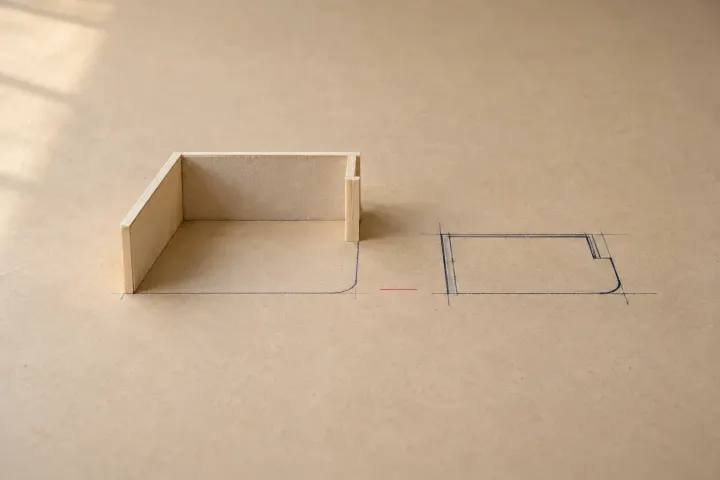
| Plans and sections that need material hatching | Section fill hatches can be assigned to materials or individual containers. | Check the cut through the intended solid and its appearance on the final sheet. |
| Several models open while you coordinate a drawing | Model tabs and floating windows share one application workspace. | Learn which model is active before editing. |
| Raster or hybrid views that need image corrections in LayOut | Image Adjustments adds opacity, brightness, contrast and color controls. | Use the intended viewport rendering mode. |
| An Intel Mac, or a computer still running Windows 10 | 2027 isn't a supported release for that machine. | Use 2026.2 on a compatible Intel Mac. For Windows, check the OS requirements before choosing an installer. |
I'd judge the upgrade on one real revision you expect to make, because a feature matters when it removes a rebuild from that job. A small static model that already delivers the required views gives you less reason to interrupt an active deadline.
Keep the profile, path and copies editable
SketchUp Procedures preserve their input geometry inside procedural components. You can edit, nest and reuse those components. Open the Procedures menu, or enable Procedural Tools under View > Toolbars.
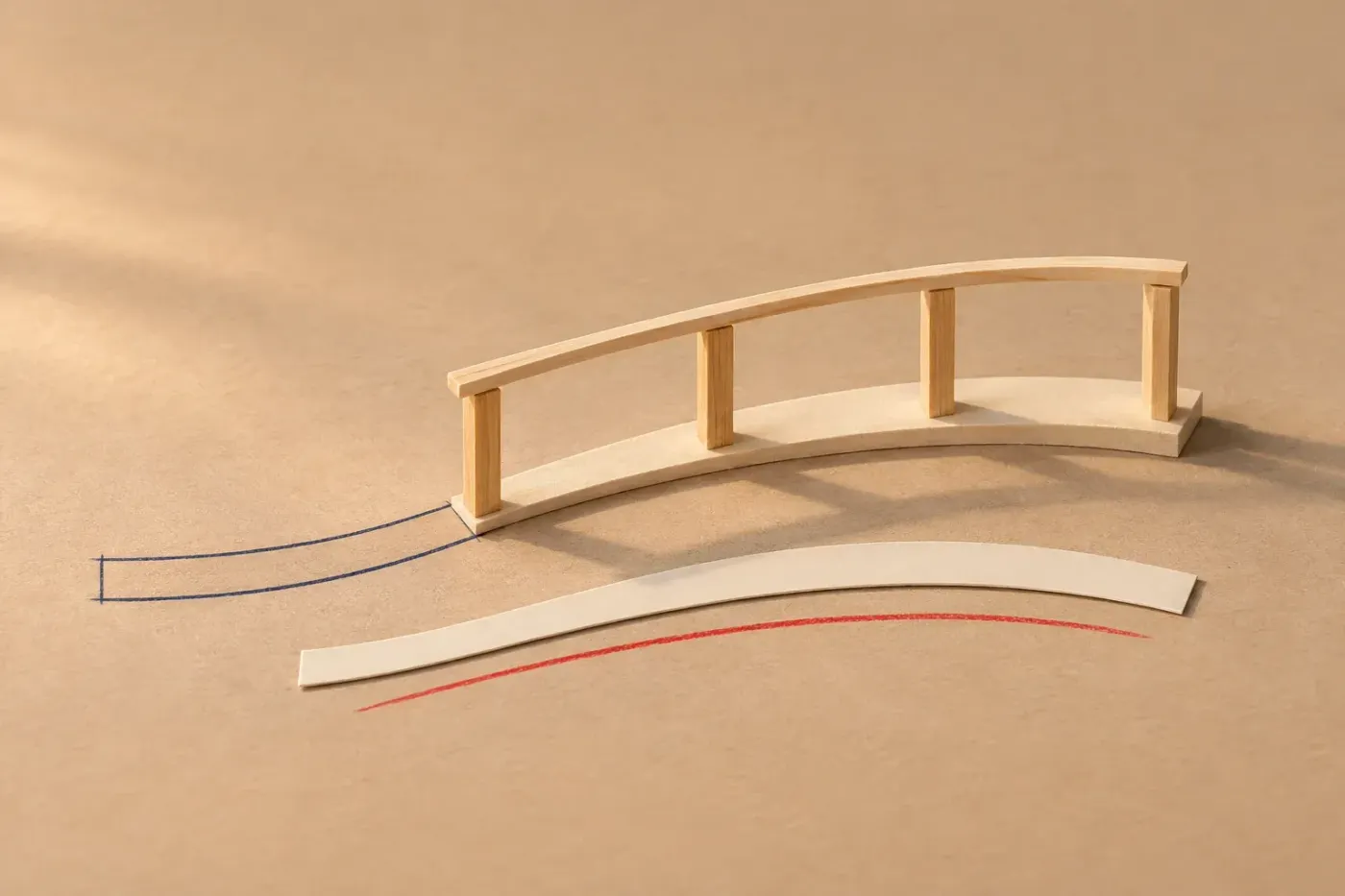
For a molding, the useful question is whether a later profile change should regenerate the sweep. Procedural Follow Me retains the source geometry for that edit; the familiar basic Follow Me workflow remains useful when you simply need the finished faces. Keep the input profile and path understandable rather than burying an unexplained stack of operations inside the model.
Copy Along places groups or components along a path. Its modes are Entire Path, Each Segment and On Corners. For the first two, Entity Info can distribute copies by count, distance or gap. A distance interval can produce overlapping copies, so inspect the ends and bends after changing it.
- Choose the Copy Along mode, then select the group or component to repeat if it isn't already selected.
- Move over the intended path edge and click to place the copies.
- Select the resulting procedural component and adjust its controls in Entity Info.
- Double-click the component to edit the source object or path. Check the updated copies before continuing the surrounding model.

The procedural Solid Tools also preserve inputs for later changes. Start with valid solids and check the cut after editing the cutter. The new Explode to Inputs context command removes the procedure while retaining its inputs; don't use it as though it were a way to keep the same editable procedure.
A straight row with fixed spacing may only need the existing Move copy and array workflow. Copy Along earns its place when the path or distribution needs to remain adjustable.
Allow time for the Mac interface and model tabs
The 2027 desktop interface brings dockable trays, dockable toolbars and the revised Materials interface to Mac, bringing the workspace closer to Windows. It changes where a long-time Mac user looks for controls. Rebuild the workspace around the panels used for the current job before tackling a deadline model.
Model tabs sit above scene tabs. A model tab switches files; a scene tab changes a saved view within a file. Drag a model tab out to make a floating modeling window, or double-click a tab to undock or redock it. The toolbars and panels stay in the primary workspace. Check the active file before a paste, material change or save. Within a model, Outliner now offers Sort By > Tags alongside Hierarchy, so you can find tagged objects without changing their nesting.
Check the section and the exported sheet
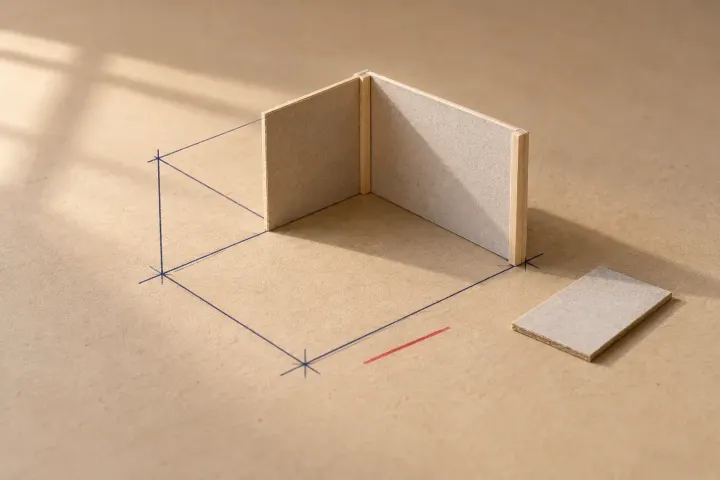
Section fill hatches add material patterns to cut solids. For a material-linked hatch, paint the solid group or component; painting only its individual faces does not set the section fill. A material-linked hatch can be overridden on an individual group or component through Entity Info. The Style's section-fill settings can also hide or override those patterns. If a hatch disappears, check the container assignment and style before replacing the material.

The new Hatch Patterns panel manages the patterns. SketchUp can import SKH, an image or a PAT file, but imports one pattern per PAT file. A multi-pattern PAT needs its patterns imported separately, as described in the 2027 section-fill changes.
In LayOut, select a raster or hybrid viewport or an image, then open Window > Default Tray > Image Adjustments. Adjust opacity, brightness, contrast, hue or saturation there. Individual resets and Reset All return those controls to their original state. These are image adjustments; they don't repair the model's geometry.

Draw Mode in the Scaled Drawing panel provides a paperless canvas at real-world 1:1 size. Click Enter Draw Mode, draw the detail, then Exit Draw Mode. LayOut converts the work into a scaled group. Check the displayed scale before placing it on the sheet. If pasting into a new, empty Draw Mode session sends the geometry into paper space, draw a short line in Draw Mode before pasting. SketchUp staff described that workaround and another user confirmed it; check the resulting scaled group before placing the detail.
2027 also introduces a new Hidden Line Rendering engine for vector linework. It is a Public Labs feature enabled by default. If it causes trouble, switch to the classic engine under Preferences > Performance in LayOut or Preferences > Graphics in SketchUp. Compare the same drawing in your project copy before relying on it for delivery. The LayOut workflow covers the model scenes, viewports and final document that still have to agree.
Use AutoFit and exchange changes where they apply
AutoFit works with Live Components that support it. Dragging a suitable component onto a flat face can configure it to fit that face. An ordinary component from a library doesn't gain that behavior just because the model is opened in 2027. Check the asset's supported behavior before planning a cladding or furnishing workflow around AutoFit.
DWG and DXF gain import controls for tessellation and annotations. IFC export can carry CRS positioning from a model geolocated with a Coordinate Reference System. These changes help a specific exchange; they don't remove the need to check units, one known length and placement in the receiving application. Keep that check in the handoff even when the preview looks right.
If a 3D DWG comes in flat, check your build before reworking the file. SketchUp 2027.0.2 fixes that import issue for affected models and imports SubD meshes without a material texture directly. Reimport a copy and check one known depth or height.
USD exchange now includes USD, USDA and USDC alongside USDZ. In export options, use Normal for viewing or rendering; Round Trip retains a structure suited to bringing the data back to SketchUp, with a larger and slower export. Baked textures trade file size and export time for material fidelity. On import, verify the up axis and units instead of accepting a rotated or wrongly scaled handoff.
Check the computer and subscription before downloading
SketchUp 2027 supports Windows 11 or an Apple-silicon Mac with a supported macOS release. The processor alone doesn't settle every compatibility question: check the OS version and graphics requirements too. The legacy support policy retains SketchUp 2026.2 for compatible Intel Macs. Windows 10 is unsupported for 2027 even if installation succeeds. Choose an older Windows release only after checking its own support requirements; an available download doesn't establish support.
This is a desktop update, including LayOut. A subscription that includes Desktop, such as Pro, is the relevant route; Free and Go aren't desktop installers. Compare the required applications in the SketchUp plan guide, and use the cost guide for billing. SketchUp for Web runs its latest version online, while the iPad application updates through the App Store.
Move a project copy before the working original
- Keep a restorable copy. Save the SKP and its related LayOut document, linked images and other project assets outside the copy you will upgrade.
- Check the extensions that the job needs. Look for the developer's 2027 compatibility statement and an appropriate installer or update. The embedded Ruby interpreter changed from 3.2.2 to 3.4.9, and native C extensions need rebuilding for Ruby 3.4. Mac interface code also moved from Cocoa to Qt. Migration alone doesn't establish compatibility.
- Use the official installer. Download for the verified OS and sign in with the account that owns the Desktop entitlement.
- Migrate deliberately. The Extension Migrator can run from Extensions > Migrate Extensions. Preferences can also be migrated through the File menu. Follow the utility's prompts; purchased extensions may need reauthorization.
- Open the project copy and make the expected revision. Check a known length, component behavior, materials, scene cameras and section cuts. Update the linked LayOut copy and export the actual page or image format you deliver.
- Check the recipient's workflow. If a colleague uses an earlier release, have them open a separate exchange copy and confirm the geometry and edits they need. A file opening successfully doesn't prove every new procedural behavior is available there.
Keep the original setup available until the revised model and its exported sheets agree. Then save the accepted 2027 copy under a clear project filename and continue from that file.