SketchUp for Schools: the free K-12 version on Chromebooks and browsers
Free school modeling starts with the right account and administrator deployment. Check the browser, choose the Google or Microsoft route, then save and reopen a student model.
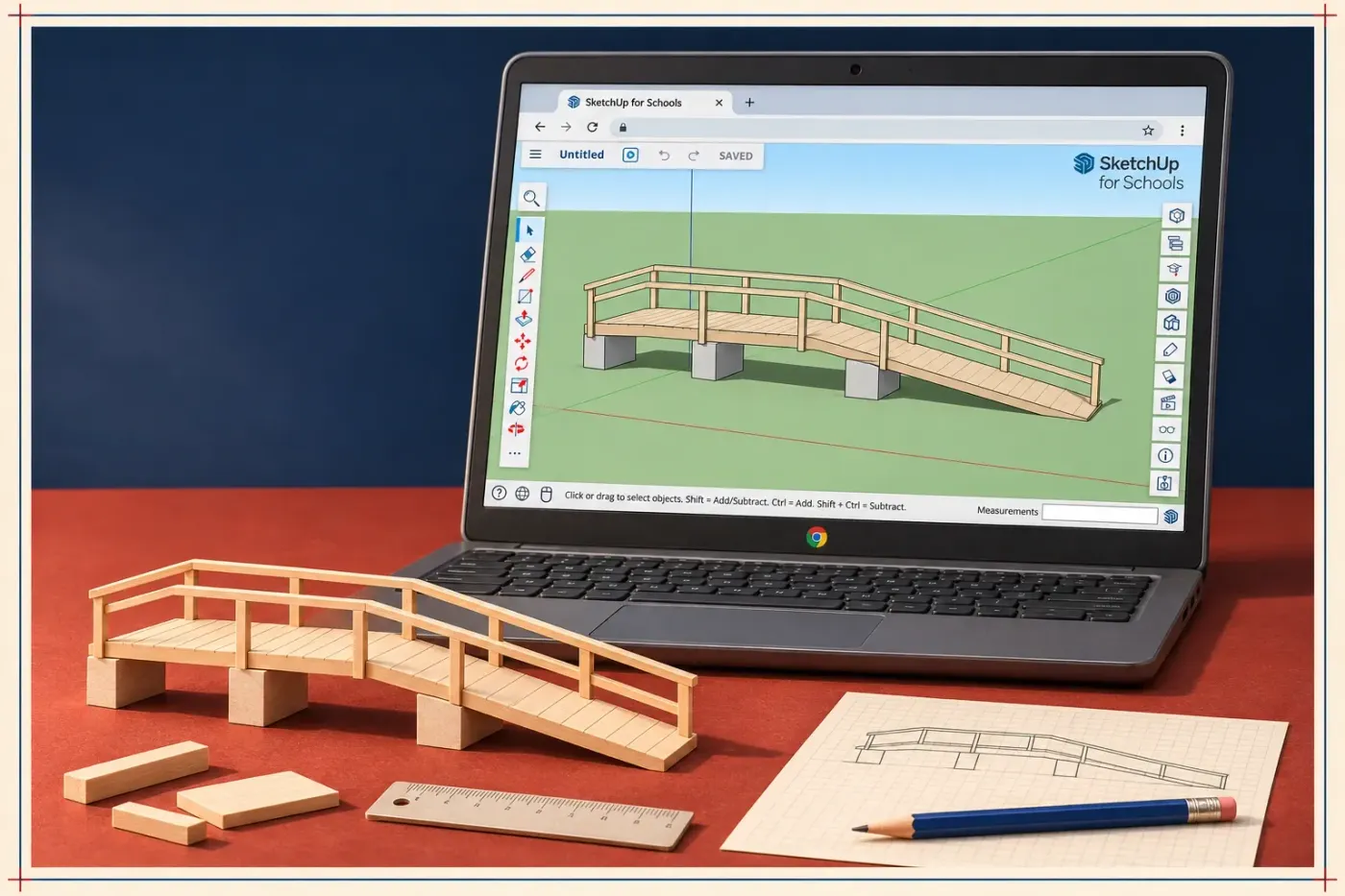
SketchUp for Schools is free 3D modeling for K-12 primary and secondary schools enrolled in Google Workspace for Education or Microsoft Education. Open SketchUp for Schools in your browser and sign in with your managed school account after the domain administrator deploys the app. It works on Chromebooks and other suitable computers; the separate Schools iPad app requires Google for Education. Trimble confirms these school access conditions in its Schools FAQ.
For a Chromebook class, I'd choose Schools because the accounts and model files stay on the school's education platform. Set up one student account and take a named model through saving and reopening before assigning the first project.
Check that the school and account qualify
The school must be a primary or secondary institution using one of the supported education services. A personal Gmail account, a personal Microsoft account or a college email address doesn't establish that eligibility. Trimble's Schools requirements specify an education account affiliated with a primary or secondary school.
Teachers and students use the same school program. The permission decision belongs to the domain administrator: the Schools FAQ says a teacher can grant application permissions only if that teacher is the domain administrator. If you teach at a college, follow the student plan for colleges; that offer has different account and software entitlements.
Check the Chromebook and browser before class
A Chromebook is a supported route, but an internet connection alone isn't the whole requirement. Trimble recommends the latest Chrome, Firefox or Edge. Safari works, although Trimble doesn't recommend it for Schools. Its device and browser specifications list 4 GB RAM as the minimum and 8 GB or more as recommended, and recommend at least 10 Mbps upload and download. Those are vendor requirements and recommendations, not a measure of how many students your network can support.
Use a keyboard with a three-button mouse or the app's trackpad input mode. Keep the first assignment small enough to check on the actual classroom devices before adding a detailed furnished model.
The iPad route uses the dedicated SketchUp for Schools app and a Google for Education account after school deployment. Its App Store compatibility field requires iPadOS 18.6 or later. Don't choose the regular SketchUp for iPad app on the assumption that a Schools account provides the same subscription access. Trimble distinguishes the Schools and regular SketchUp platforms.
Have the administrator deploy Schools to the right domains
Give this step to the person who manages the school's Google or Microsoft domain. Before deployment, review the requested access under the school's own approval process. Trimble's Schools FAQ lists Schools as its COPPA-compliant offering. The Google Marketplace listing includes permission to see, edit, create and delete Drive files. Trimble's explanation of cloud permissions says Schools needs access to save and retrieve projects and won't open, modify or delete Drive or OneDrive files without user input. For an iPad deployment, also review the app's privacy declaration: it lists data categories, including contact information and identifiers, that may be linked to the user's identity.
The two deployment paths below follow Trimble's administrator instructions. Repeat the relevant process for each domain students and teachers use. A successful teacher login doesn't verify a different student domain.
Google Workspace for Education
- Sign in to Google with an administrator account for the school's domain, then open the SketchUp for Schools listing in Google Workspace Marketplace.
- Select Admin Install, read the dialog and choose Continue.
- Trimble's documented deployment selects Everyone at your Organization and accepts the terms of service. The domain administrator handles that approval.
- Choose Finish. Verify that SketchUp for Schools appears in the apps list in the Admin Portal.
After deployment, students can open Schools from the Google apps list or go to the Schools web address. Google Education deployment also supports the dedicated Schools iPad app.
Microsoft Education
- Sign out of other Microsoft accounts first. Trimble suggests an incognito or private window if the active account is uncertain.
- Go to SketchUp for Schools and choose Sign In with Microsoft.
- Sign in with the administrator account for the school's domain.
- Review the requested permissions, select Consent on Behalf of your Organization, then choose Accept.
This Microsoft Education deployment provides browser access. It doesn't provide access to the Schools iPad app.
Let students sign in and check the Home page
Once the administrator has deployed Schools for the student's domain, open the Schools web address and choose Sign In with Google or Sign In with Microsoft. Select the managed school account. Trimble's student setup instructions identify the Schools Home page as the result of a successful sign-in. Google users can also open the app from the Google navigation menu.

If the sign-in window never appears, check the browser permissions before changing accounts again. The student instructions require pop-ups and cookies for edu.sketchup.com; the administrator instructions also call for third-party cookies during authentication. Have IT configure the permitted browser behavior for this school app. If teachers enter successfully but students can't, check the student's account provider and deployed domain before treating it as a modeling problem.
Choose Schools or Free by the classroom job
Schools and SketchUp Free both offer browser modeling, but their account and file arrangements differ. Use the school program for the managed K-12 class. The free versions and plans hub covers the other routes when the job needs a different surface.
| Job | SketchUp for Schools | SketchUp Free |
|---|---|---|
| Give a K-12 class managed access | Domain administrator deploys; students use Google for Education or Microsoft Education. | Uses an individual Trimble ID. It doesn't follow the Schools domain deployment route. |
| Keep the model on the education platform | Browser files use Google Drive or OneDrive. | The Free offer includes 10 GB of Trimble Connect storage. |
| Teach while students model | In-app lesson plans and videos, plus Help Center, YouTube and SketchUp Campus. The Schools iPad app has in-app videos. | Help Center, YouTube and SketchUp Campus; no in-app lessons listed. |
| Work on an iPad | Dedicated Schools app, with Google for Education. | The Free offer is the browser version. |
| Take a basic model or image away | Browser Download offers SKP, PNG and STL. Schools also documents a separate Export menu with more formats. | Its product page lists SKP, PNG and STL exports. |
Schools' Export menu adds DWG, DXF, OBJ and PDF, so Free's short format list isn't a Schools limit.
For the model itself, the Schools interface guide confirms groups and components in Outliner, measurements in Entity Info, units in Model Info, plus Materials, Tags, Scenes and Solid Inspector. These give a class concrete geometry to work with: named parts, real dimensions and views students can return to. Trimble's platform comparison lists no SketchUp AI tools, collaboration tools or Live Components for Schools. Sharing a file through a school drive doesn't establish simultaneous modeling inside the app.
Save one class file and reopen it
Finish the access check on a file the student can find again. For an example pilot, use a small model and a name such as Classroom-table-01. Follow the Schools cloud-save sequence:
- In the browser model, choose Save, Save As or the model's title.
- Select My Drive or OneDrive, according to the education account.
- Choose the intended folder, enter the model's name, then select Save Here or Save.
- Check that the chosen name appears in the Main Menu. Trimble says autosave starts after this first save, with a default five-minute interval that can be changed in App Settings.
Return to the Home screen and open the named model from its recent-model tile. If it isn't listed, the documented opening route lets the student choose Google Drive or OneDrive and browse to the file. Confirm that the intended geometry is there before distributing the class assignment.

On iPad, tap the Save to Cloud control in the toolbar. Reopen the saved model on the iPad to confirm it is the correct copy.

For a local copy, use the browser's Main Menu > Download and select .skp. The Schools download instructions also list PNG and STL; files go to the download location set in the browser. To reopen that local copy, choose Open From Device and select the downloaded SKP file. Schools on iPad has no Download command; use its Export options for the required output, or return to the browser route when you need a local SKP download.
Choose a Trimble lesson that matches the geometry
Start with a lesson that teaches how the model holds together. Trimble's Schools curriculum includes The Building Blocks of SketchUp, which teaches components through a house project, and 3D Modeling for Geometry Class, which uses shapes, surface area and volume. Those are useful starting points before a class fills a scene with downloaded objects.
The curriculum directory links videos, available lesson materials and modeling activities for the web app. For a larger teaching project, the Schools educator resources include assessment rubrics for projects such as Urban Innovators and Data-driven Designers. Choose the learning objective first, then decide which model demonstrates it.
With a deployed student account and a named file that reopens, move to a first model for students. Keep the first exercise at a known size, with its parts in groups or components and a clear view to return to.